Build a digital flower bouquet, customize greenery and arrangement, add a note, and generate a recipient link with Bloomify.
WHY HEREChoose up to seven flowers, arrange a bouquet, and add a personal note.
Canned Letter Vercel app offers a deliberately small creative task: put a message into an illustrated can and preview how that gift arrives. NavSprout selects it for the connection between composition and recipient experience. Before using it for a real occasion, try a non-sensitive note and decide whether the time-based presentation suits the person receiving it.
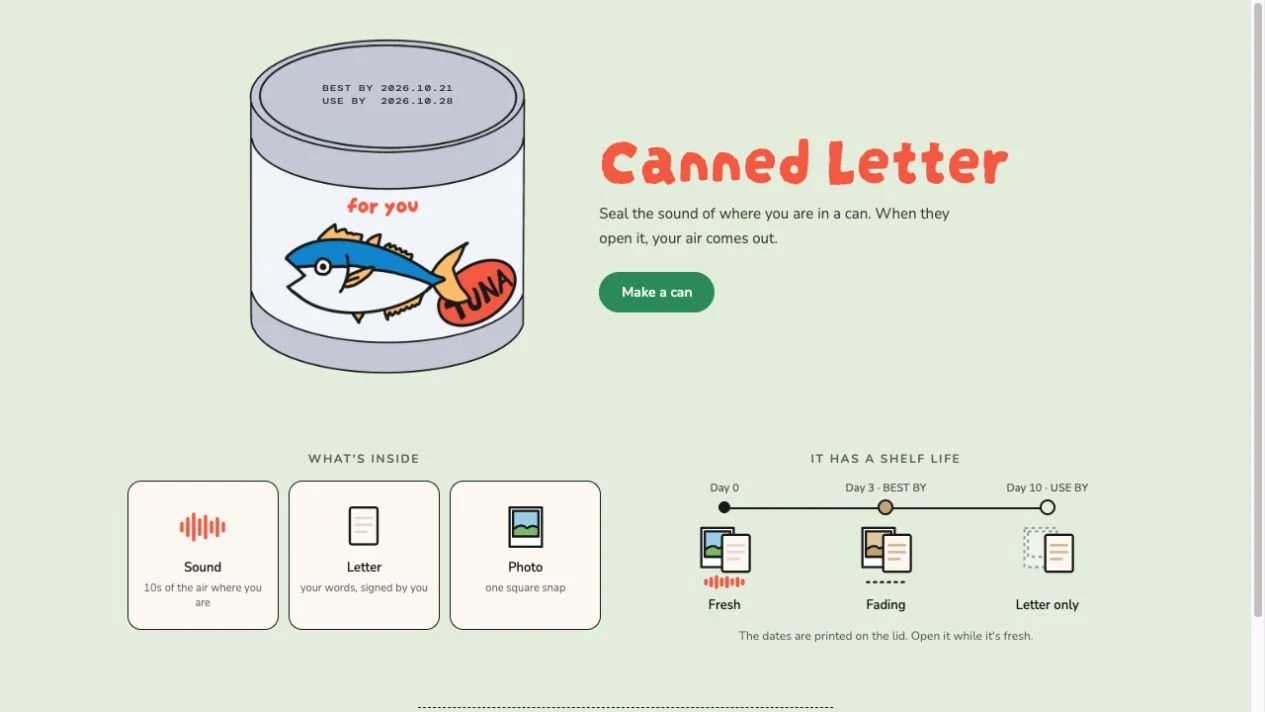
Selected for a specific creative workflow: turn a short note into an object-like recipient experience, then inspect the interaction before committing. The freshness concept and sealing warning make the recipient’s timing and the sender’s review part of the choice.
People evaluating a brief personal gift with an interactive recipient presentation.
The editor says sealed cans cannot be changed. We did not complete the opener gesture, publish a link, test media, verify retention, or establish private access controls.
Canned Letter Vercel app offers a deliberately small creative task: put a message into an illustrated can and preview how that gift arrives. NavSprout selects it for the connection between composition and recipient experience. Before using it for a real occasion, try a non-sensitive note and decide whether the time-based presentation suits the person receiving it.
Checked October 18, 2026: opened the homepage and /new editor, entered fictional text and an editorial sender name, opened Preview, picked up the can and returned to Edit. We did not complete the opener gesture, record sound, upload a photo, seal a can, generate or send a recipient link, or test the multi-day shelf-life behavior. Pricing beyond preview, privacy controls, deletion and long-term retention were not verified.
The matching project is https://canned-letter.vercel.app/. It is a personal-message web app with a can-shaped presentation, not a generic collection of canned business responses. Its homepage credits shoko.oym and offers a direct route into the editor.
The product combines a letter with optional ambient sound and a photo. The page describes a changing presentation over time, so its purpose is closer to a fleeting digital gift than a replacement for your notes archive.
The interesting choice is the recipient ritual. A small note is wrapped in an object that must be picked up and opened, and the lid communicates dates. That can give a brief message a sense of occasion when the interaction suits the recipient.
It also creates a tradeoff: an extra opening gesture and a limited freshness window can be inconvenient. Evaluate the experience with the recipient’s device, timing and comfort in mind rather than treating decorative interaction as a benefit for everyone.
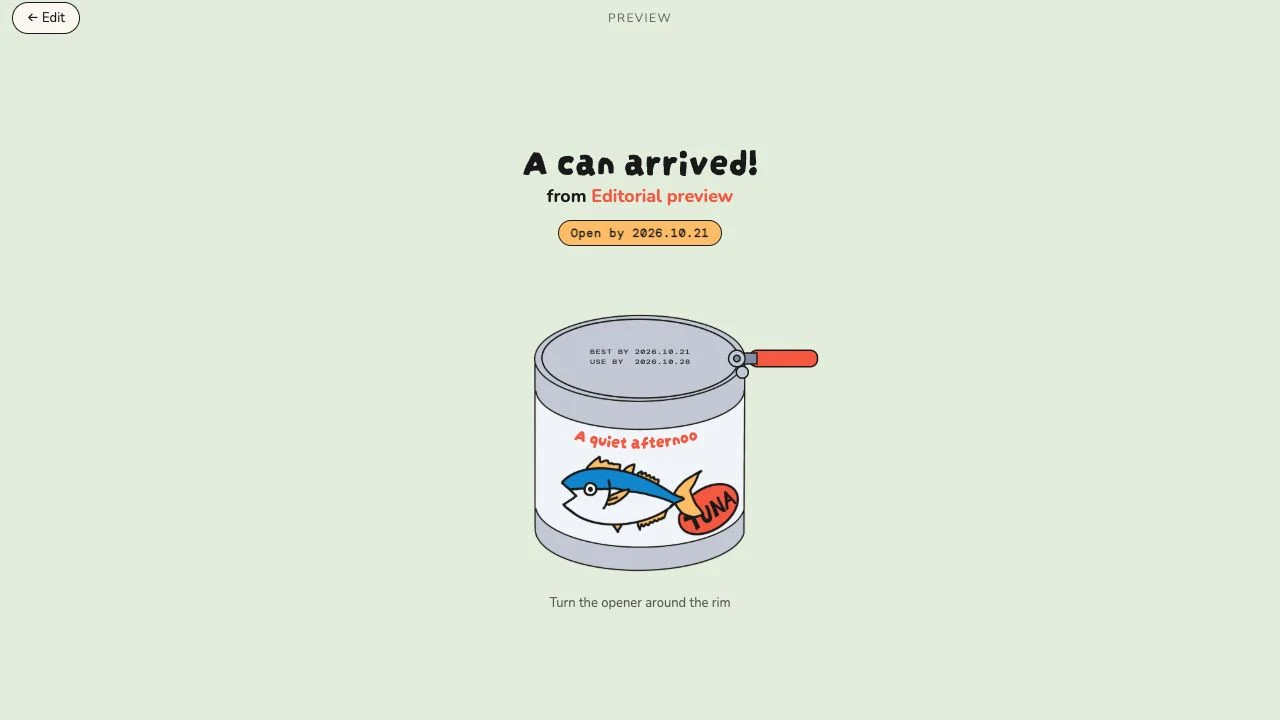
We used fictional editorial text without adding media. Preview showed an arriving can, the sender name and dates. Picking up the illustration brought up an instruction to turn the opener around its rim. Returning to Edit kept our entered text available within that editing session.
We did not complete the can-opening gesture, use Seal & get link or publish a recipient URL. This trial establishes a text-entry and preview path, not successful delivery, sound playback, photo processing or reliable draft recovery after a reload.
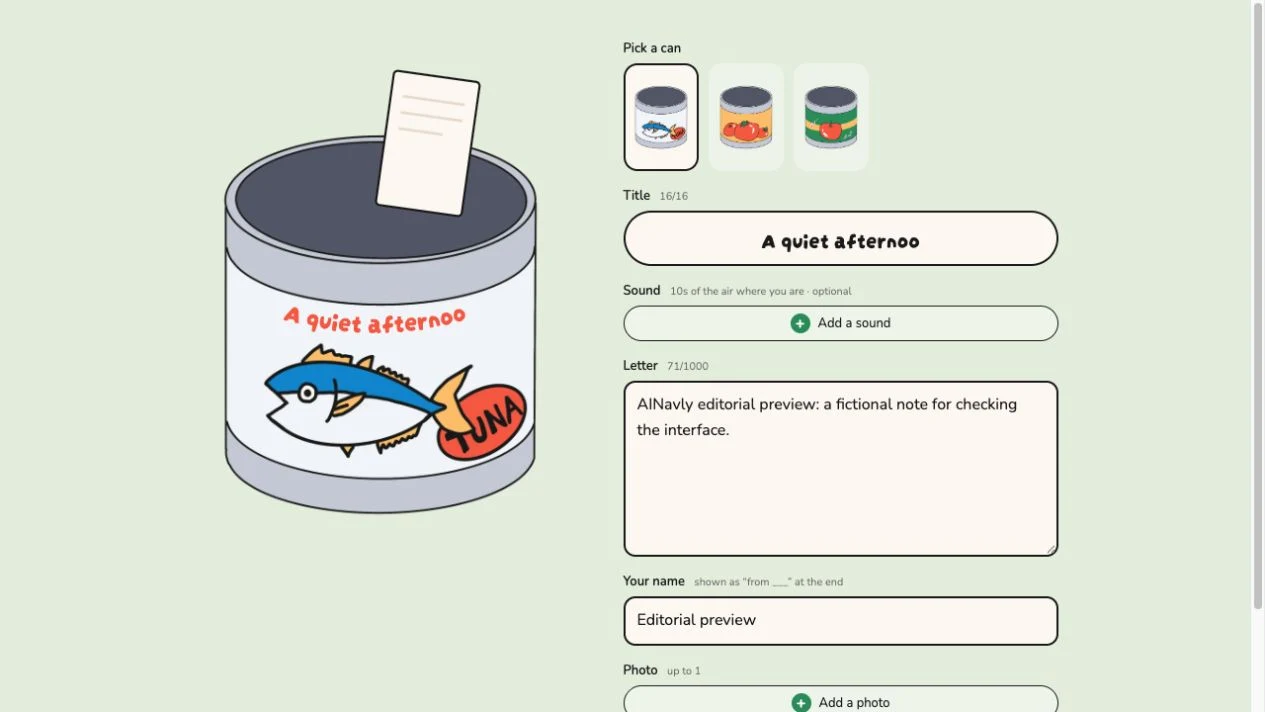
The editor shows a 16-character title, a letter counter up to 1,000 characters, an optional ten-second sound control and space for one photo. In our trial, a title longer than the limit was truncated. Keep the label concise and make the letter understandable without media.
The page warns that a sealed can cannot be changed. That turns proofreading into part of the task: check the sender and final wording, not just the artwork. The sound and photo options were visible, but their recording, processing and delivery were not tested.
The homepage describes fresh content on day zero, fading at day three and a letter-only stage at day ten. We did not run a multi-day retention test. The timeline can reinforce a “read this soon” gesture, but it is not evidence of guaranteed long-term access or secure deletion.
If your purpose is a lasting keepsake, retain your text and media elsewhere. If your purpose is a timely surprise, consider whether the recipient will have a chance to open it during the app’s stated fresh period.
No account or payment was required for the public text preview we inspected. That does not establish the terms of sealing, link permissions, retention or every other feature. We did not audit the backend or verify a deletion process.
Avoid sensitive information in a trial. If the editor fails, preserve your draft, check validation and try a current browser. If an opening gesture does not work for the recipient, a plain-text version of the message is a useful fallback.
Choose a visual bouquet when the arrangement itself is the gift; choose a mixtape when linked music is central. Canned Letter is the more relevant trial when a small written message and an opening ritual are the main event.
NavSprout’s Bloomify and Mixtape for You profiles explain those other workflows. Compare the deliverable, the recipient’s effort and the persistence you need before choosing a format.
This profile refers to Canned Letter at https://canned-letter.vercel.app/, the supplied project website we inspected.
It offers a focused creative exercise where the sender can inspect the recipient presentation before deciding whether to seal a gift.
No. We used fictional text in preview and returned to editing. We did not seal or share a can.
The homepage says only the letter remains. We did not verify media deletion, recovery or the duration of continued letter access.
The sound step is marked optional, and our text preview did not require a recording.
Our check did not establish private access controls or retention guarantees. Use a channel with verified protections for confidential material.
Written by NavSprout Editorial. Published and checked . We use primary project pages and distinguish interface observations from features we have not tested. External websites can change after this check.
Independent editorial coverage. NavSprout is not the developer of the apps described here.
Report a correction →Different roles in the same workflow. Follow the reason, then compare.
Build a digital flower bouquet, customize greenery and arrangement, add a note, and generate a recipient link with Bloomify.
Choose a visual bouquet when arrangement and reveal matter most.
Design a cassette-style digital mixtape using YouTube song links.
Explore a music-centered gift rather than a letter with optional ambient sound.