
Bloomify Ashen Vercel App
Build a digital flower bouquet, customize greenery and arrangement, add a note, and generate a recipient link with Bloomify.
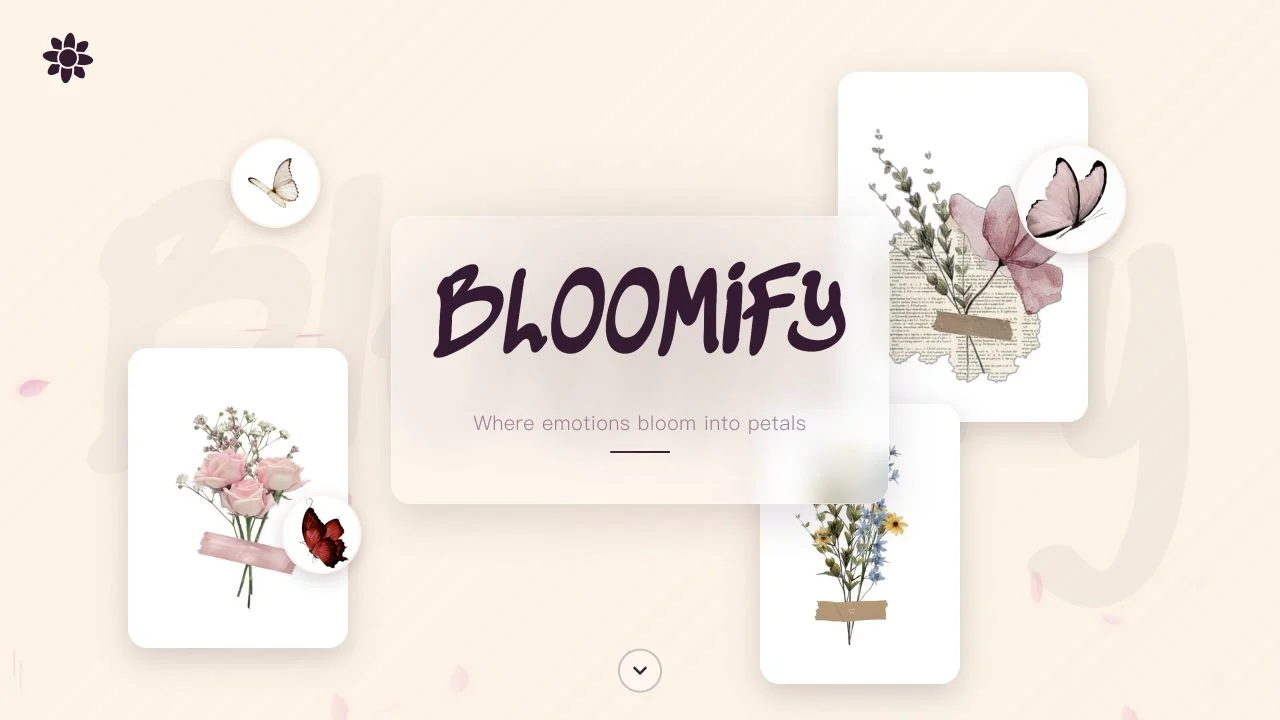
Why it’s here
Bloomify combines a small flower selection with a recipient-opening experience. We followed the actual builder, shuffled a three-flower bouquet, added a clearly marked test note, and opened the resulting recipient link. This profile explains that complete flow rather than treating the landing page as proof of a finished gift.
Who it fits
People making a small digital flower gift with a personalized message.
A task to try: Build and preview a three-flower sample
- Open Bloomify and choose Create a Bouquet.
- Add a few flowers, build the bouquet, and review the greenery and arrangement.
- Add a non-sensitive note, generate the link, and inspect See Receiver View before sharing it yourself.
Where to be careful
Recipient links should not be assumed private or permanent. We did not audit storage, deletion, authentication, physical delivery, or mobile compatibility, and did not use the WhatsApp sharing action.
Bloomify Ashen Vercel app: build and share a digital flower bouquet
Bloomify Ashen Vercel app turns a small flower selection into a digital bouquet with a personal note and recipient link. We tested the complete flow with Rose, Tulip, and Daisy, then opened the gift to verify the message and reveal.
Checked October 15, 2026: selected three flowers, used Shuffle, entered a fictional recipient and sample note, generated the preview/link, and opened the recipient gift. No payment or sign-in appeared. No external message was sent. Retention, deletion, access-control privacy, downloads, all greenery choices, manual drag, and mobile performance were not verified.
What is the Bloomify Ashen Vercel app?
Bloomify Ashen Vercel app refers to the digital flower-gift website at bloomify-ashen.vercel.app. Its visible brand is Bloomify. The builder lets you choose flowers, customize an arrangement, add a recipient name and message, and produce a link that opens a bouquet surprise.
The Ashen wording is part of the supplied hostname; the inspected interface does not present it as a separate paid edition or bouquet type. Use the full address when locating this project rather than assuming every similarly named flower website is the same service.
Our tested flow creates a digital composition and a web link. We did not encounter a delivery address, physical bouquet checkout, or florist order. This guide describes the online gift experience and does not imply that it delivers real flowers.
How to make a digital bouquet in Bloomify
- Open the homepage and use Create a Bouquet. An introductory animation may appear before the main page becomes available.
- On Build Your Bouquet, add flowers using their individual plus buttons. The screen shows a total out of seven; our sample used one Rose, one Tulip, and one Daisy.
- Use Build My Bouquet to continue. The next screen offers greenery and an arrangement preview.
- Use Shuffle to try a different arrangement, then choose Next — Add a Message. A drag-to-rearrange instruction is also visible; drag behavior was not tested in this inspection.
- Enter a recipient display name and a short note. We used Sample recipient and an explicitly labeled sample message, without personal details.
- Select Send Bouquet to generate the preview and recipient link. In our test this created a shareable page rather than sending a message to anyone.
- Use See Receiver View, then open the gift to inspect the bouquet and note. Only share the link yourself after checking the result.
Flower choices and the seven-flower limit
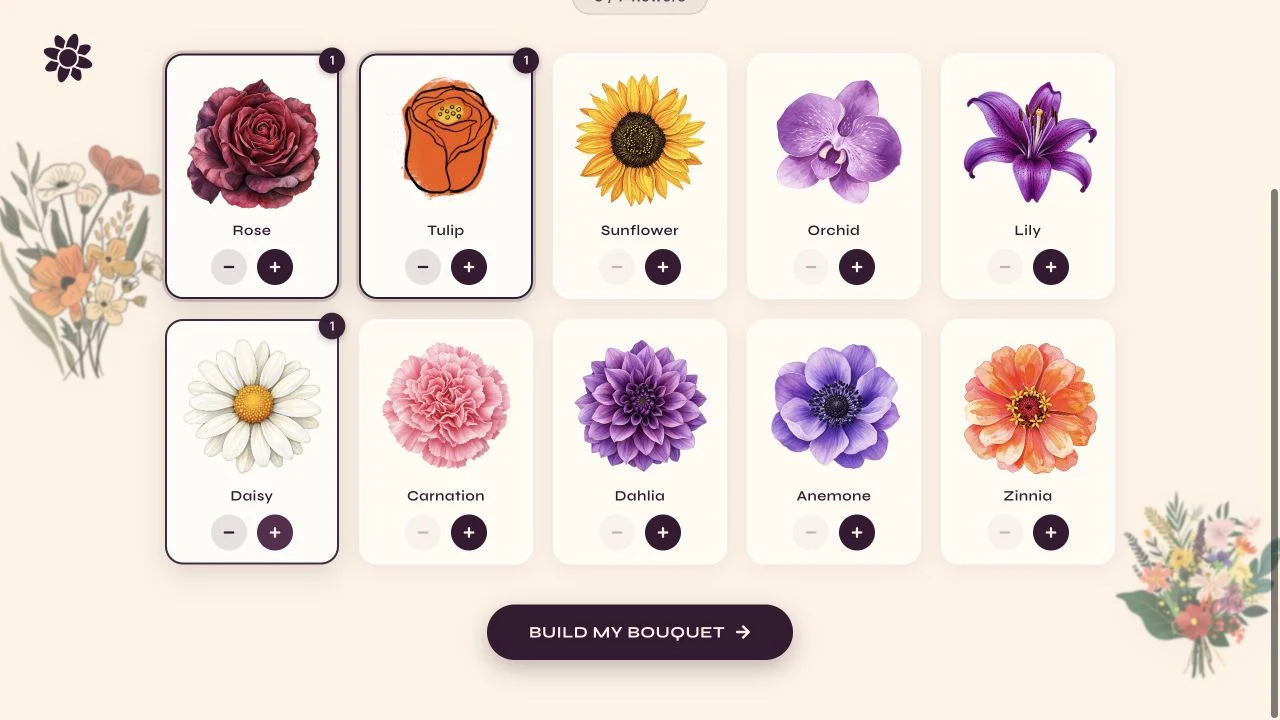
The builder displays Rose, Tulip, Sunflower, Orchid, Lily, Daisy, Carnation, Dahlia, Anemone, and Zinnia. Each flower has add and remove controls. These are digital illustration options within the builder, not a live florist inventory or a promise about seasonal availability.
The inspected screen asks you to choose up to seven flowers and shows the selected total. We added three different types and saw a 3/7 count. The screenshots record that small sample; we did not test every combination or all boundary cases at the maximum.
For a first gift, a few flowers make it easier to see what the arrangement controls change. Choose a small palette, inspect the preview, and add complexity only if the composition still reads clearly at the size the recipient will see.
Greenery, shuffle, and bouquet arrangement
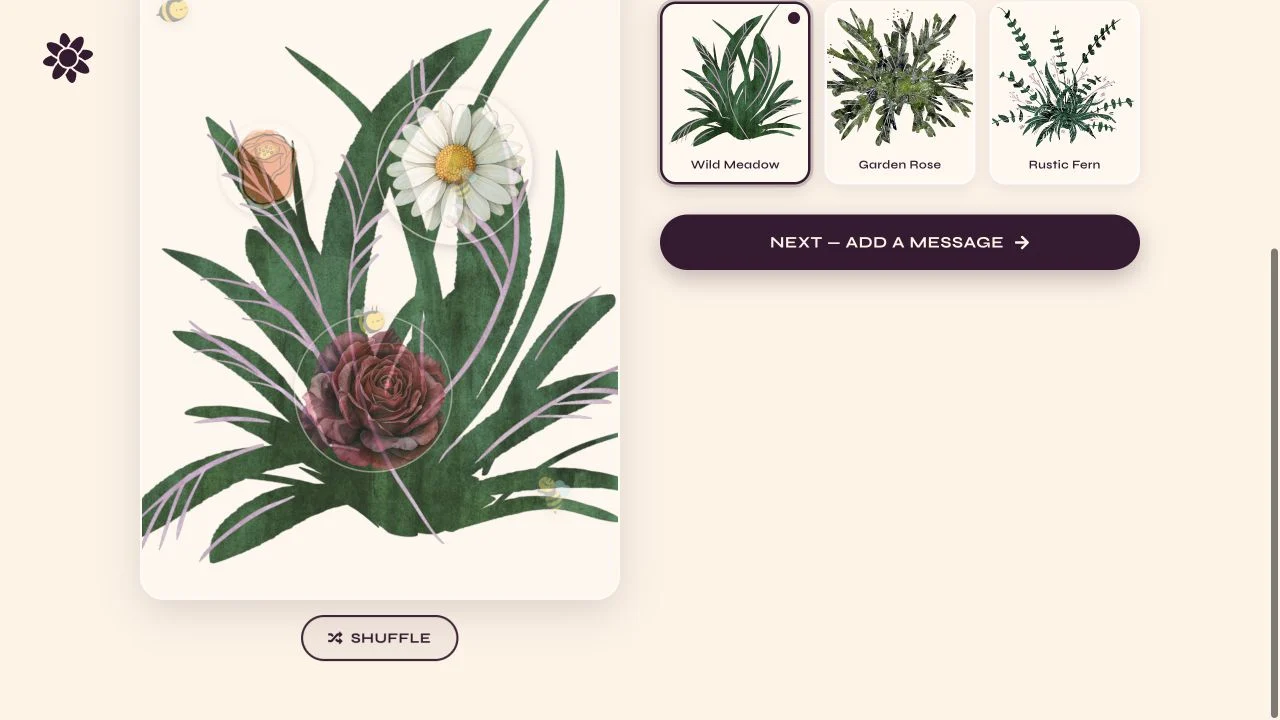
The customization screen lists Wild Meadow, Garden Rose, and Rustic Fern greenery options. It also offers Shuffle and shows a drag-to-rearrange instruction over the bouquet. These settings concern the digital composition, not the wording of the message.
We activated Shuffle and continued with our three-flower sample. We did not independently exercise every greenery choice or drag gesture. The screenshot below shows the actual customization screen reached during that test, not a generated mockup.
Before moving on, check whether the bouquet feels balanced and whether one flower hides another. A recipient views a finished arrangement, so it is worth deciding on the appearance before adding the note.
Add a recipient name and a personal note
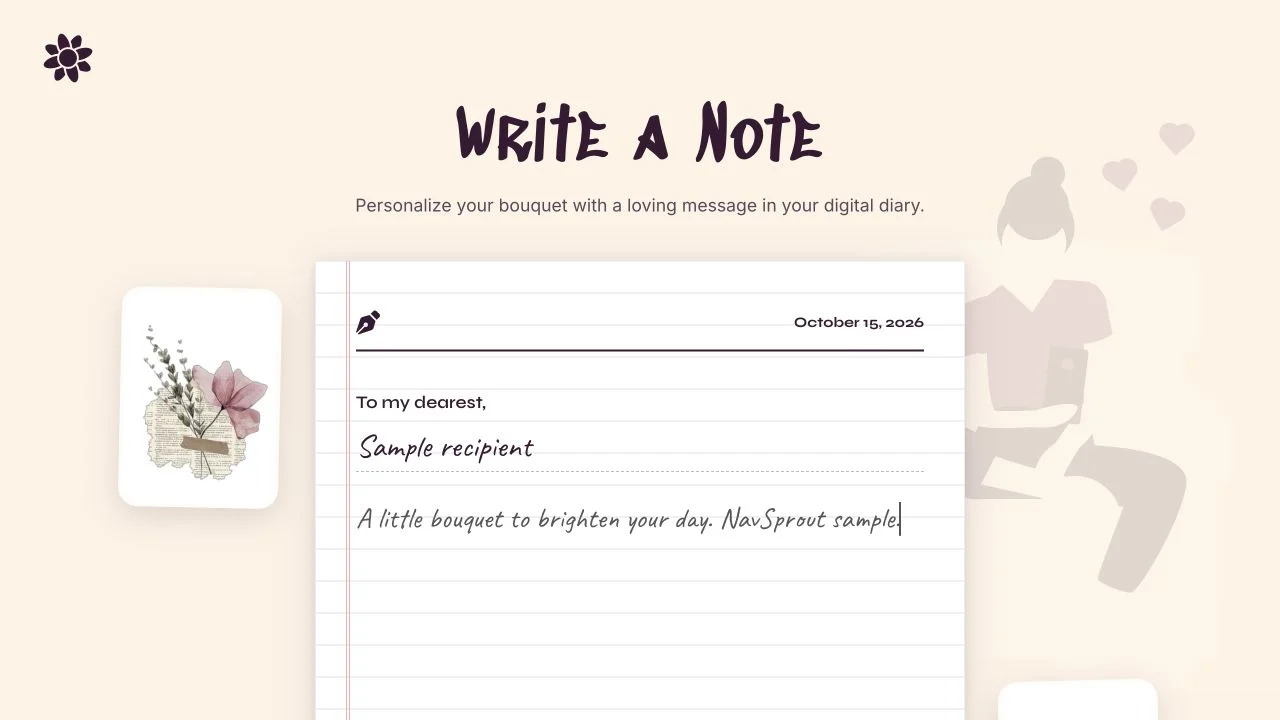
The Write a Note screen contains a recipient field and a message area in a diary-like presentation. It displays the date and a decorative sign-off. In our test, the entered recipient label and message carried through to the generated preview and opened gift.
Write for the person who will open it, but keep the delivery format in mind. The resulting gift is accessed through a URL. Avoid treating that URL as proof of restricted access or entering information you would not want shown on a third-party page.
A short note is easy to inspect during the first trial. We did not measure a maximum message length, supported formatting, or the handling of every script or emoji. Check your actual wording in the recipient view rather than relying only on the editor.
What happens after Send Bouquet?
In our test, Send Bouquet produced a preview with a ready message, the assembled bouquet, our note, a recipient URL, Copy Link, Share on WhatsApp, and See Receiver View. It did not ask for an email address or take payment in that flow.
We generated the link and inspected the recipient experience. We did not press Share on WhatsApp or send a message to another person. A sharing button is a separate action from creating a preview; review its destination before using it.
The preview and recipient pages have different roles. The former lets the creator inspect the result and obtain the link; the latter presents the surprise. Use the recipient view to judge what someone actually receives.
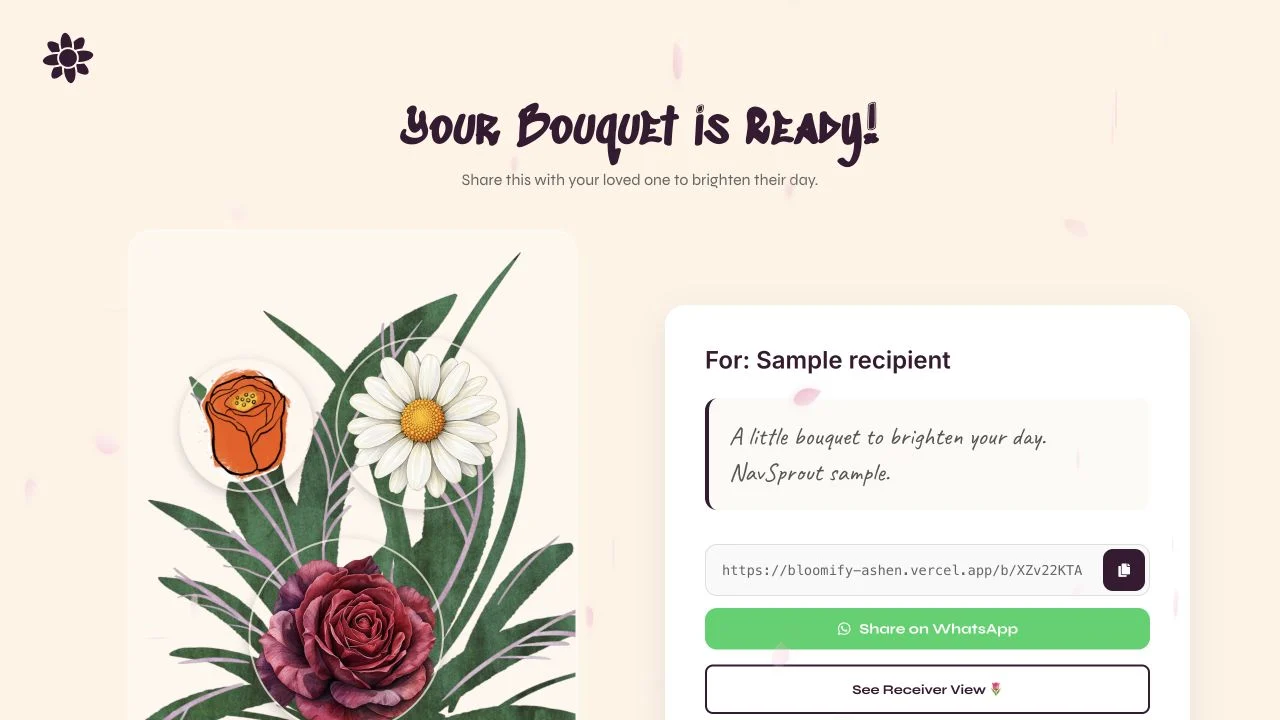
The recipient surprise: open the gift to reveal the bouquet
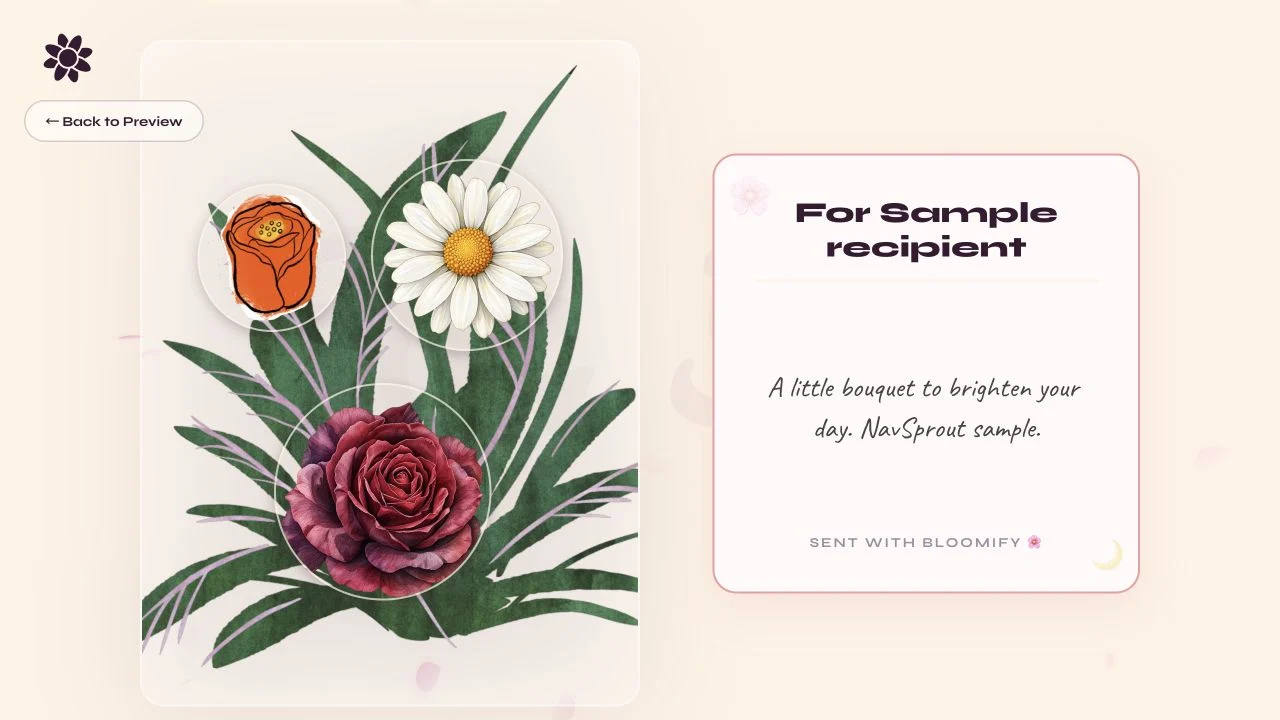
The recipient route initially showed a surprise for our sample recipient and an Open Your Surprise button. Activating it revealed the selected flowers and the sample note. We observed a staged reveal rather than only a static editor screenshot.
That verifies one recipient route in the same browser session. It does not establish authentication, an expiry policy, indefinite availability, or compatibility with every messaging-app browser. If your gift matters, keep your original note and check the link before sending it.
The screenshot shows the revealed bouquet and message for a fictional recipient. It contains no real recipient information, and the page in this guide is not a service for storing or distributing your gifts.
Is Bloomify free, and do you need an account?
We completed flower selection, customization, a note, link generation, and the recipient reveal without registration or payment. No priced plan or checkout appeared in the tested screens, so NavSprout lists this observed basic flow as Free.
This is a statement about the current tested flow. It does not promise permanent hosting, unlimited saved bouquets, future pricing, download rights, or a support commitment. No physical flower order was part of the check.
Sharing, storage, and keeping a copy of your message
A recipient URL should not be assumed to be a private vault. We did not audit access controls, server storage, retention, editing, or deletion. The link generated in our test was enough to open a gift in the same session, but that alone says little about who else could access it or how long it will work.
Keep a separate copy of a note you care about. If you need to change or remove a gift, inspect the app’s current controls rather than assuming that the preview can always be edited after creation. We did not verify a deletion or revision workflow.
The landing page uses enduring-gift language. This is promotional positioning, not a verified retention guarantee. NavSprout does not repeat it as a promise that a bouquet URL will remain online forever.
Ideas for a small digital flower gift
A thank-you, birthday greeting, encouragement note, anniversary message, or simple hello can fit this compact flow. These are suggested uses, not verified built-in occasion templates. The personalization comes from your flower selection and message.
Choose a few flowers, shuffle until the grouping looks intentional, and write one clear message. The creator preview and recipient reveal give you two useful checkpoints. A test bouquet is a sensible way to learn the process before putting more thought into a final gift.
Bloomify not loading or a bouquet link not working?
Our first browser navigation timed out, while a later normal visit to the same original hostname loaded successfully. That shows a temporary access issue in our test environment; it does not establish a permanent outage or a general defect in the service.
Distinguish the homepage from a generated recipient link. The homepage contains the builder entry, while a recipient URL refers to a particular bouquet. JavaScript is needed for the interface. We did not test offline operation or diagnose failures by changing browser security settings.
If a step appears to stall, check whether a transition is still running, whether flowers have been selected, or whether the page is displaying a loading state. Preserve your note before refreshing, and verify the final recipient view before using an external sharing action.
Common questions
What is the Bloomify Ashen Vercel app?
It is the digital bouquet builder at bloomify-ashen.vercel.app. You select flowers, customize an arrangement, add a note, and generate a recipient link.
Does Ashen name a special plan?
Ashen is part of the supplied hostname. The inspected interface did not identify a separate plan or bouquet type with that name.
How many flowers can I add?
The builder asks for up to seven flowers. Our test selected one Rose, one Tulip, and one Daisy and showed 3/7.
Which flowers are listed?
The inspected builder lists Rose, Tulip, Sunflower, Orchid, Lily, Daisy, Carnation, Dahlia, Anemone, and Zinnia.
Can I change the greenery?
The customization screen offers Wild Meadow, Garden Rose, and Rustic Fern. We inspected these options but did not test every one.
Can I rearrange flowers?
Shuffle was tested. The preview also displays a drag-to-rearrange instruction, but manual drag behavior was not verified.
Can I add a personal message?
Yes. Our sample recipient name and note appeared in the generated preview and opened recipient gift.
Is Bloomify free?
The full create, preview, and recipient-reveal flow we tested required no account or payment. Future terms and retention were not verified.
Does Send Bouquet automatically message someone?
In our test it created a preview and recipient link. WhatsApp sharing was a separate control and was not used.
Does it deliver real flowers?
Our inspected workflow produced a digital bouquet link and did not include a physical delivery checkout.
Are gift links private or permanent?
Access controls and retention were not audited. Do not infer privacy or permanent availability from having a generated URL.
Can I download or delete a bouquet?
Download, editing after creation, and deletion were not verified. This guide confirms the link-and-recipient-view flow only.
Sources & editorial method
Written by NavSprout Editorial. Published and checked . We use primary project pages and distinguish interface observations from features we have not tested. External websites can change after this check.
Independent editorial coverage. NavSprout is not the developer of the apps described here.
Report a correction →