
Learn ESP32 is an interactive electronics-learning website at learn-esp32.vercel.app, credited to Dilum Sanjaya. It puts a 3D ESP32 DevKit beside explanations, a schematic and example code. NavSprout’s recommended first task is deliberately small: locate the board’s LED, run the introductory demonstration, then move to the two-LED lesson and explain why the lights alternate.
What can you do in Learn ESP32?
The site presents 20 lessons around one illustrated ESP32 board and a changing set of components. You can pan, rotate and zoom the scene, inspect labeled parts, compare the wiring with a schematic, read code and run a lesson demonstration. Overview, Pinout, Example and Specifications tabs organize the learning material. The useful connection is between a pin, a line of code and a visible result, rather than just memorizing component names.
First, meet the board before adding components
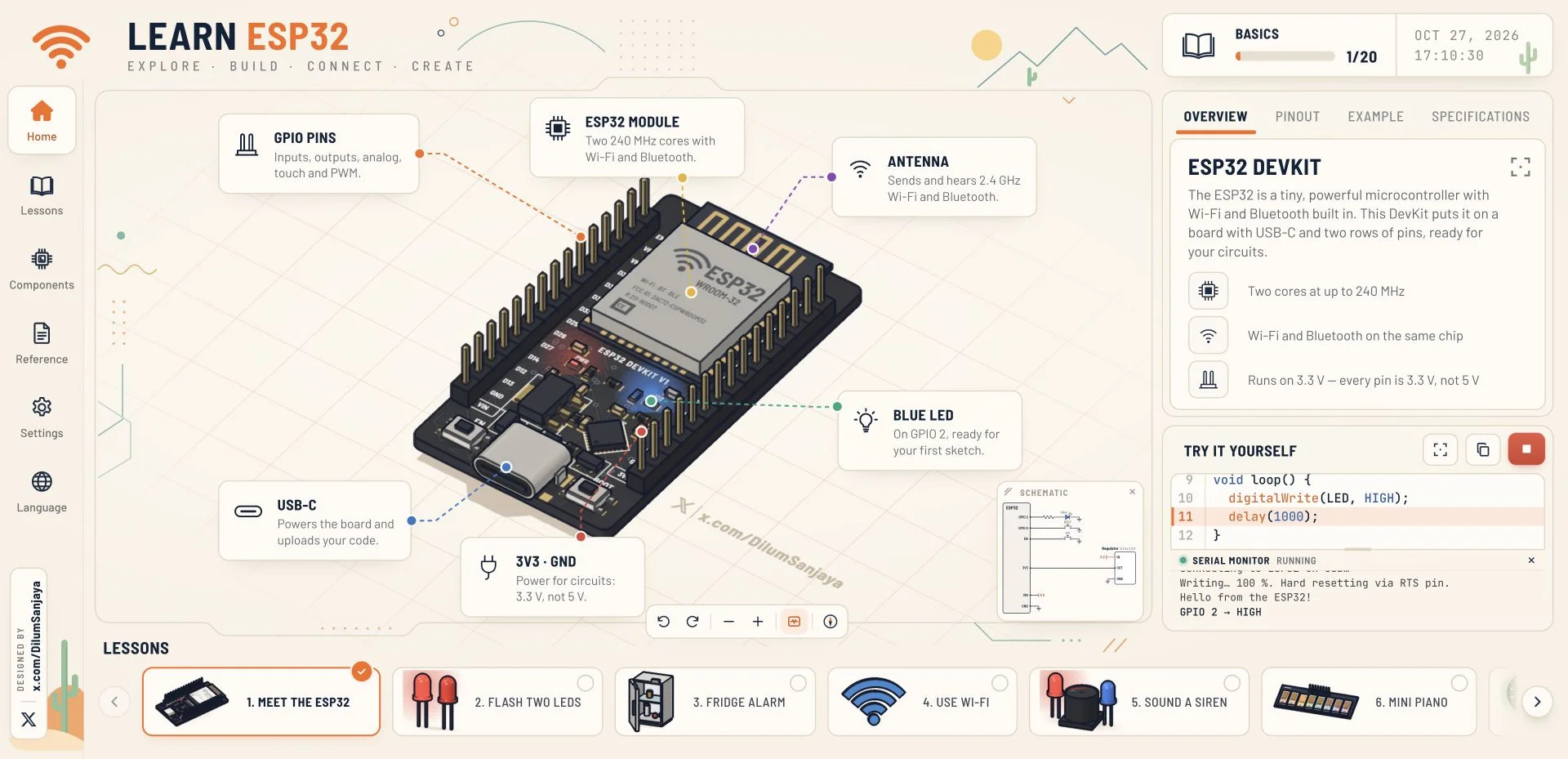
The introductory view labels the GPIO pins, module, antenna, USB-C connector, 3V3/GND supply and blue LED. Its example names GPIO 2 and prints a greeting. During our browser check, Run sketch produced “Hello from the ESP32!” and a GPIO 2 HIGH message in the serial monitor. This happened without connecting hardware. Use that result to understand the lesson’s intended sequence, not as proof that firmware has reached a physical board.
Next, trace the two-LED circuit
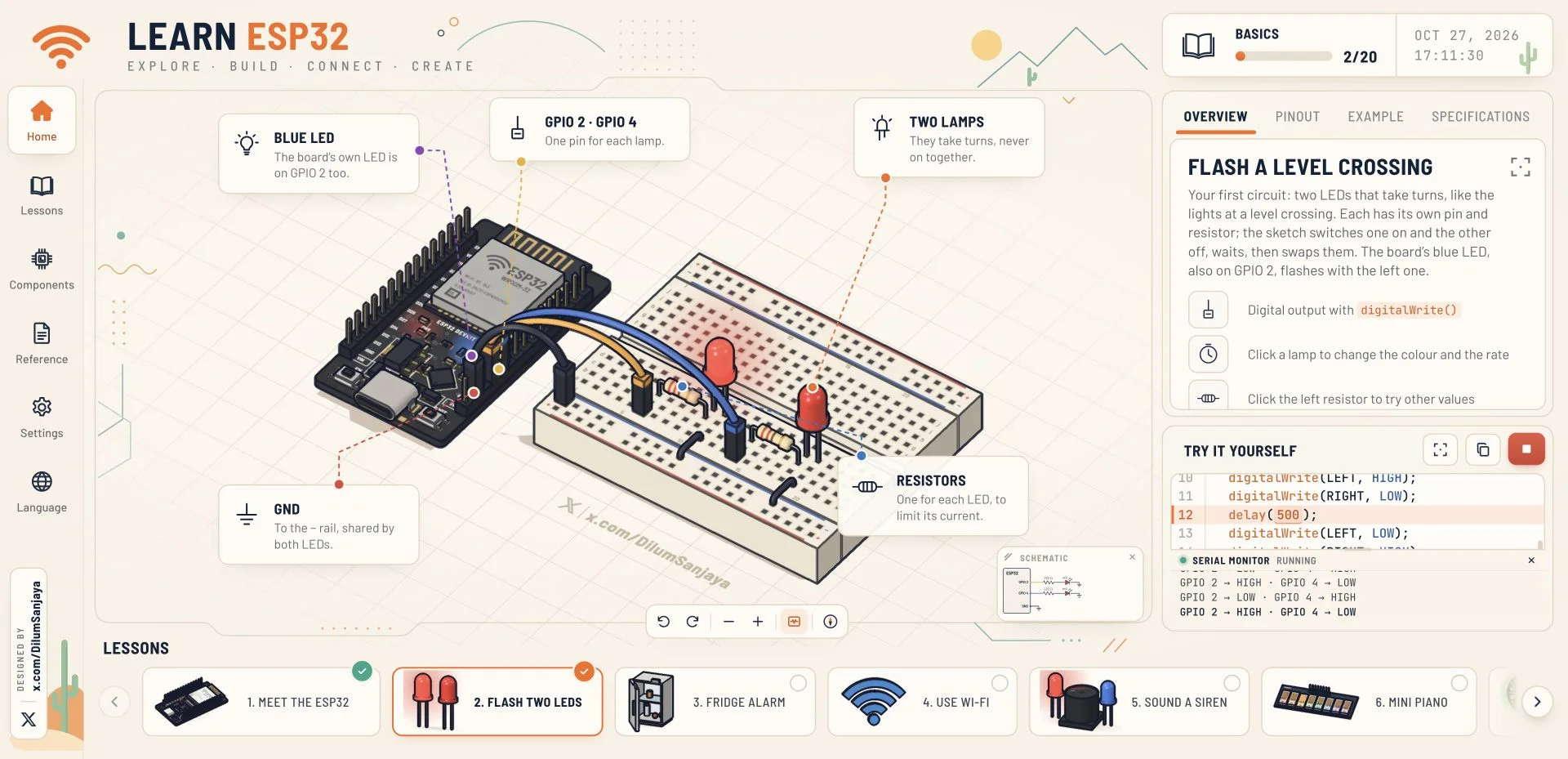
Lesson 2, Flash two LEDs, adds a breadboard, two lamps and resistors. Follow GPIO 2 and GPIO 4 to their respective LEDs, and locate the shared ground. Read the two output states in the code before pressing Run sketch. In our check, the monitor alternated HIGH/LOW messages between the two GPIOs. That makes a useful prediction exercise: state which lamp should be on before looking back at the animation.
Use the schematic to check your explanation
The 3D drawing makes the layout approachable, while the schematic gives a second view of the circuit. You can hide, move or resize that schematic with the controls documented in Reference. Try describing the path in words: output pin, current-limiting resistor, LED and return to ground. If the visual model and your explanation disagree, stop and compare them before adding a more complicated component.
Build a learning route through the 20 lessons
After board orientation and LEDs, the lesson strip offers a fridge alarm, Wi-Fi, a siren, mini piano, LED ring, mood lamp and light-responsive circuit. Later topics include distance measurement, motors, a laser barrier, Bluetooth and board-to-board communication, followed by parking, pumping, keypad, solar-tracking, radar and pick-and-place scenarios. Choose one new idea at a time: input, output, sensing, motion or communication.
Try Wi-Fi as an explanation of requests and outputs
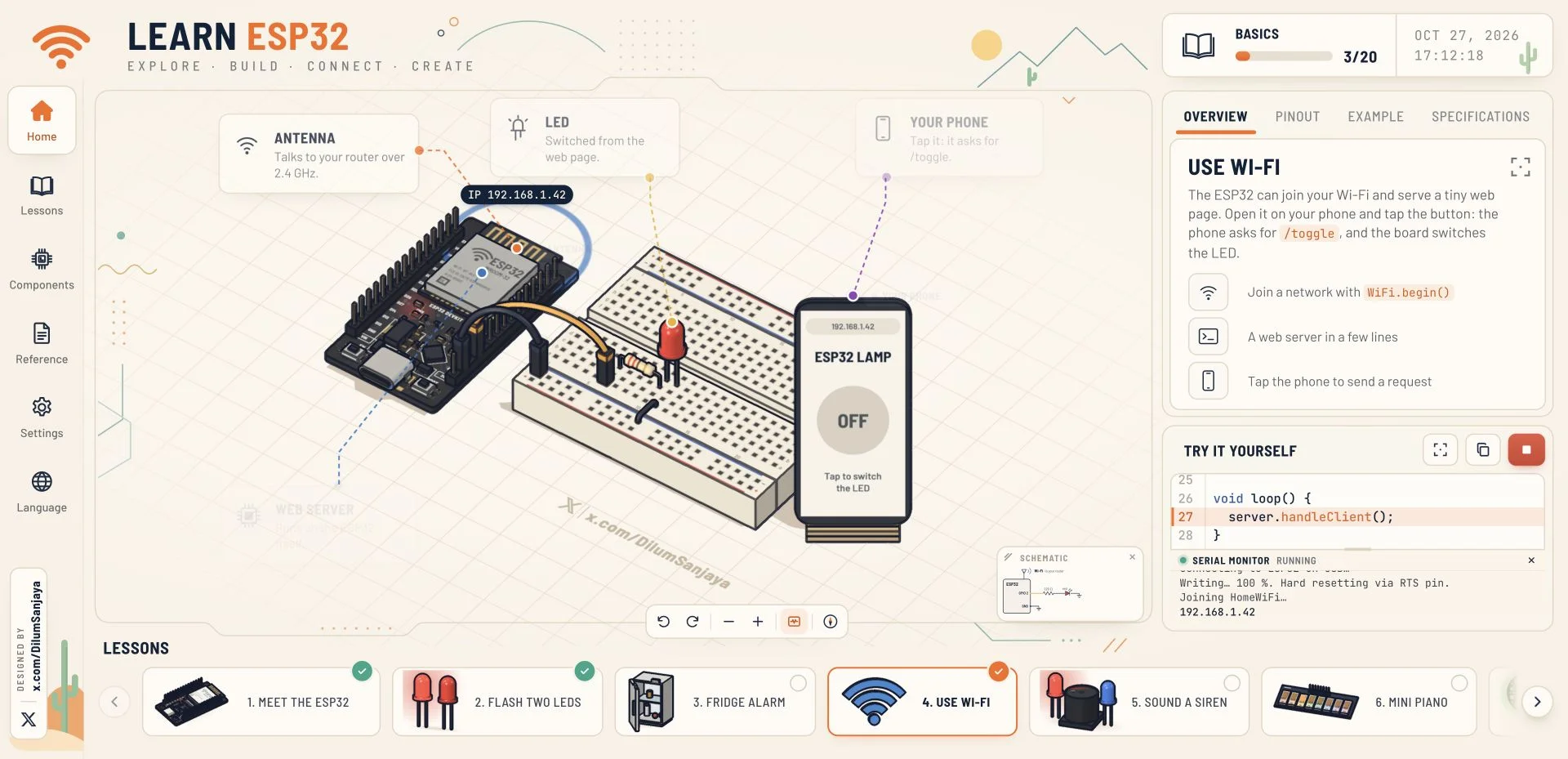
The Wi-Fi scene pairs an ESP32, a lamp and a phone illustration. Its lesson explains a small web server and a /toggle request. Running it displayed a HomeWiFi connection sequence and an example IP address in our browser session. Those labels belong to the demonstration; they are not your router credentials or a live device endpoint. Study the relationship between a request and the output before trying a real networked project.
Move from the browser to your own board carefully
Learn ESP32 works as a visual rehearsal. A physical project still needs the correct board selection, toolchain, wiring and compatible components. Check your exact board’s documentation rather than assuming every ESP32 variant has the same pins or onboard LED. The app illustrates a particular DevKit and emphasizes 3.3 V signals. We did not flash hardware, validate electrical behavior or test arbitrary edited programs.
Use the controls to keep the circuit readable
Drag or WASD pans the view, Q/E turns it and the scroll wheel changes zoom. R resets the view; Space runs or stops the demonstration. The Language menu included English and Korean during our visit. On a cramped display, expand the information or code panel and use the schematic toggle to focus on one representation at a time. The original site’s Reference panel is the quickest place to recover a forgotten shortcut.
Inside Learn ESP32
Actual English-interface browser captures from the three sampled lesson runs. Open a screenshot to inspect the full view. No hardware was connected.
A focused first visit
- Open Learn ESP32 and select Meet the ESP32. Locate GPIO 2 and the blue LED.
- Run the introductory example and read the serial monitor output.
- Select Flash two LEDs. Predict GPIO 2 and GPIO 4 states, then run the lesson.
- Compare the animation, code and schematic; explain one complete circuit before moving on.
Learn ESP32 FAQ
What is the Learn ESP32 Vercel app?
It is the interactive ESP32 learning website at learn-esp32.vercel.app, with a 3D board, illustrated circuits, explanations, schematics and runnable lesson demonstrations.
Do I need an ESP32 board to start?
No physical board was connected for our browser tests. You can explore the built-in lessons first; building them outside the browser requires suitable hardware and a separate toolchain.
How many lessons are available?
The reviewed interface lists 20 lessons, starting with Meet the ESP32 and Flash two LEDs and extending to wireless, sensing, motion and combined project scenarios.
What should I try first?
Start with board orientation, then Flash two LEDs. Predict the GPIO states before running, and compare the code with both the 3D circuit and schematic.
Does Run sketch upload to a real ESP32?
Our tests ran built-in browser demonstrations without a connected device. Upload-style serial messages should not be taken as confirmation of real compilation or USB flashing.
Who is credited for the app?
The original interface displays “Designed by” with a link to Dilum Sanjaya’s X profile. The article links that original credit rather than inventing a separate publisher.
Can I use it in Korean?
Korean was listed in the Language menu alongside English and other languages during our review. We tested the lessons in English, not every translated lesson.
Sources & editorial method
We inspected Learn ESP32 on October 27, 2026, checked its 20 lesson entries and ran the introductory, two-LED and Wi-Fi demonstrations in a browser. Screenshots are original captures of those runs. The site displays a “Designed by” credit linking Dilum Sanjaya; the icon is its own unmodified favicon.
We did not connect or flash an ESP32, reproduce physical circuit behavior, run arbitrary edited code or test every lesson and translation. For a separate hardware setup, consult Espressif’s Arduino ESP32 getting-started documentation and the exact board vendor’s specifications.
Continue learning
Explore our Learn Arduino guide for an adjacent visual-learning resource, read our editorial approach, or return to the blog for more practical discoveries.