A FIRST CIRCUIT · A CLEAR LEARNING TASK

Learn Arduino Vercel App: Start With an LED
The learn arduino vercel app search leads to Learn Arduino at learn-arduino-red.vercel.app, a free browser course by Dilum Sanjaya. Its 16 lessons turn an unfamiliar Arduino Uno into something you can inspect, run and adjust. Start with one LED: follow its connection to pin 13, run the sketch, then change a timing value and look for the result.
- Focus
- Beginner electronics
- Format
- 16 interactive lessons
- Access
- Free public browser lessons
- Creator
- Dilum Sanjaya
Why it’s here
A first electronics lesson becomes easier to approach when you can connect a visible part, a line of code and an observable change. Learn Arduino brings those three things into one screen. NavSprout selects it for a small, repeatable learning task that can be completed before buying a physical kit.
What is the Learn Arduino Vercel app?
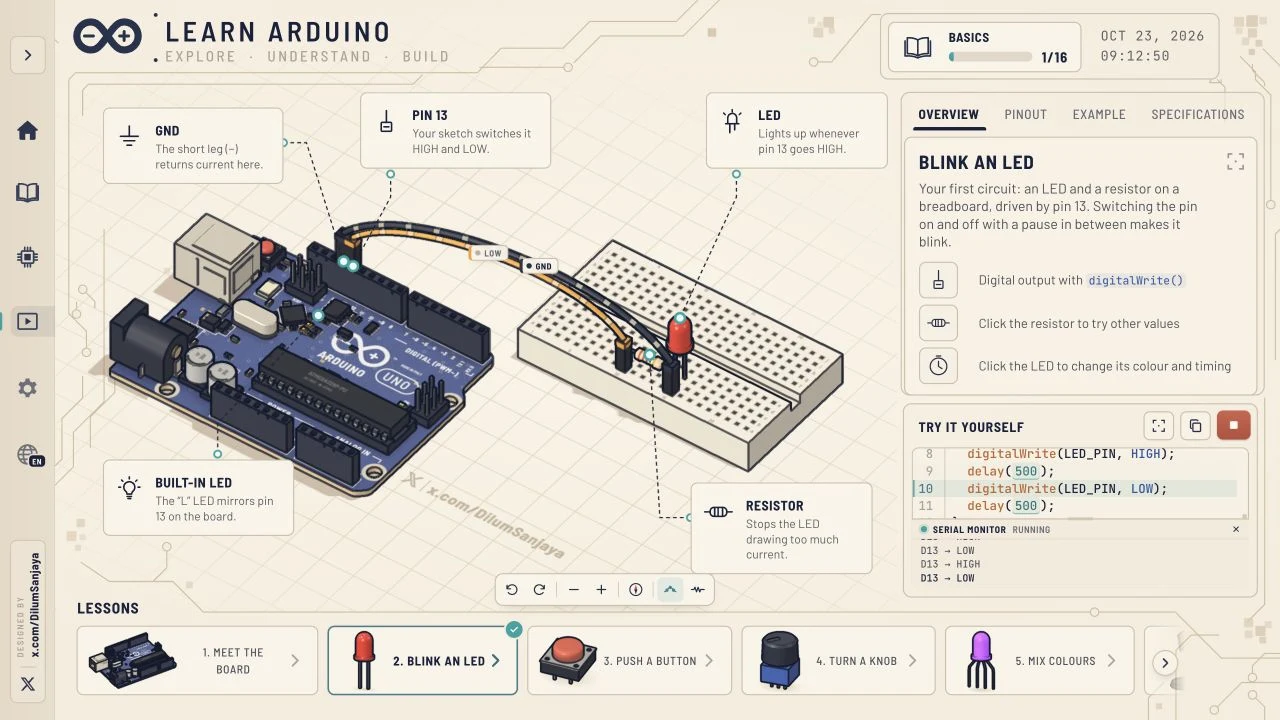
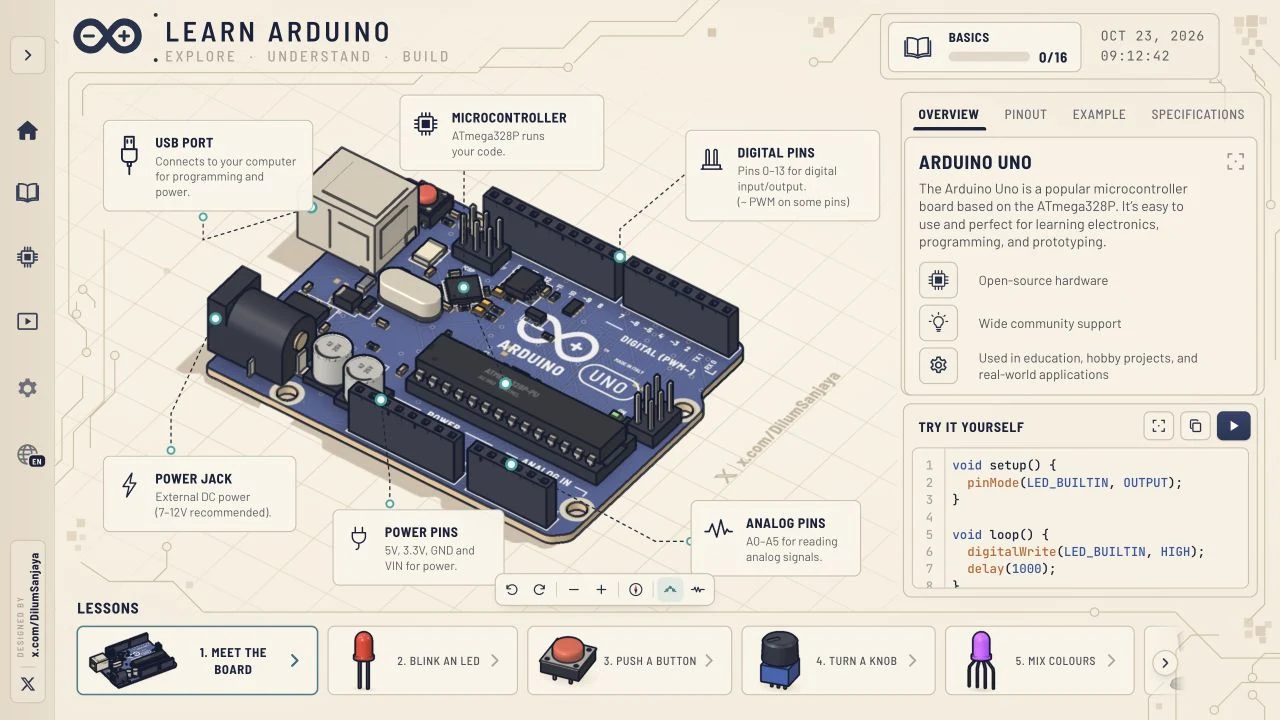
It is an interactive learning website rather than a video playlist. A 3D board occupies the main workspace, while an information panel explains the selected lesson and a code panel shows the accompanying sketch. A bottom lesson rail lets you move from meeting the board to increasingly involved circuits.
The exact deployment is learn-arduino-red.vercel.app. The word “red” belongs to this address; it is useful when distinguishing the intended site from other Arduino tutorials. The project identifies itself as Learn Arduino and credits Dilum Sanjaya.
A first task: make the LED blink
Select Blink an LED and find the LED, resistor, GND and pin 13 labels. Read the overview before running the sketch. The goal is to explain what turns the light on and off, rather than simply to finish a lesson.
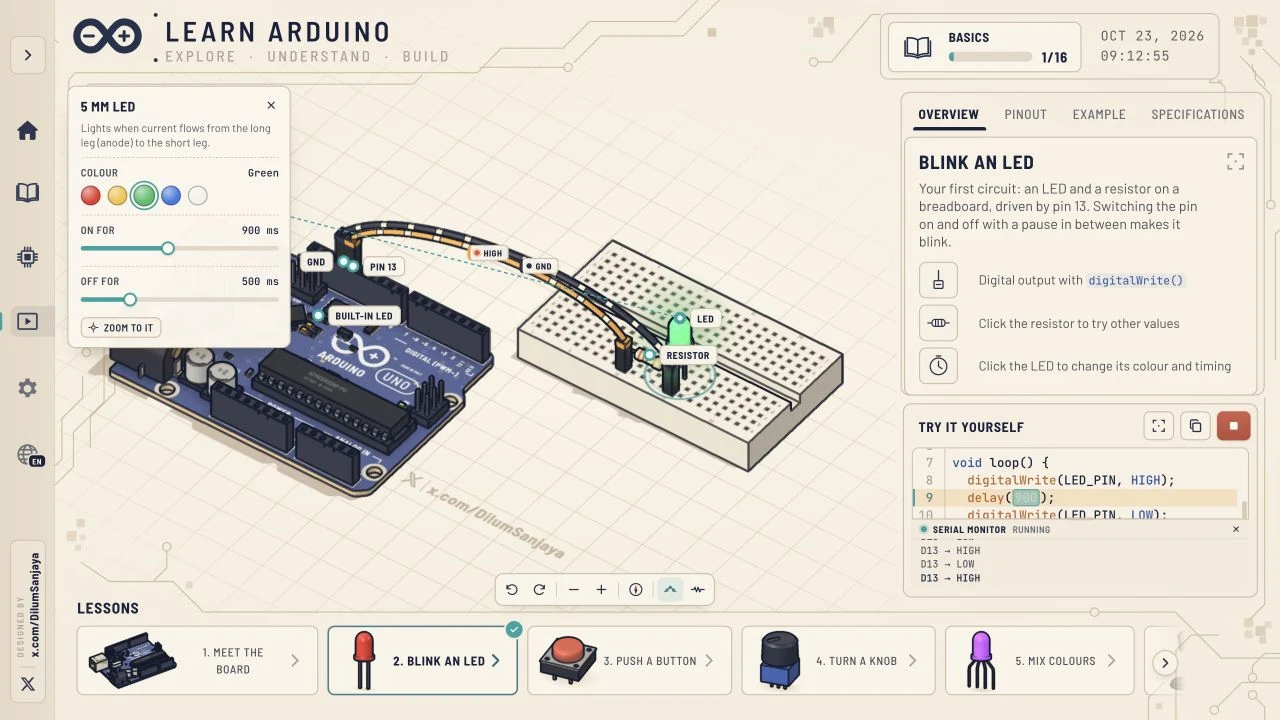
In our browser check, Run sketch changed the serial monitor to RUNNING and produced alternating D13 HIGH/LOW messages. Clicking the timing value opened the LED inspector. We selected Green and changed ON FOR from 500 to 900 ms; the inspector and code both reflected the new value. Leave OFF FOR unchanged to compare a single variable.
Connect the object, code and schematic
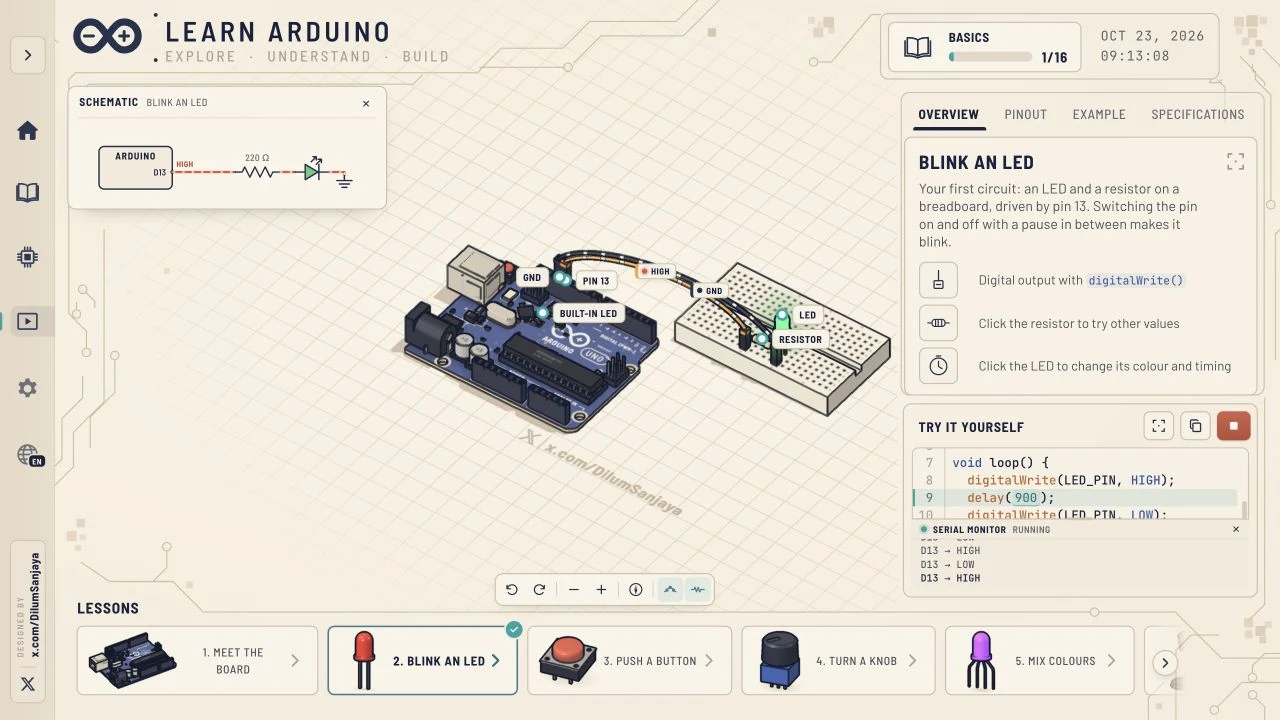
The 3D view helps you recognize where components sit. The schematic offers a more compact representation of the same circuit. During the LED lesson, enabling Show schematic displayed an Arduino D13 connection, resistor and LED while the running circuit remained visible.
Use this as a reading exercise: identify a part in the 3D scene, locate it in the schematic and find the relevant code. Panning, rotating and zooming can help when a label or wire is difficult to see.
Where to go after the first circuit
The lesson sequence includes buttons, a potentiometer, RGB colours, light and distance sensing, sound, motors, temperature, a servo, a stepper, soil moisture and force sensing. A final parking-sensor project combines a distance sensor with traffic-light outputs.
Choose the next lesson according to the question you want to answer. A button introduces an input; an LED introduces an output; the parking example connects a reading with a decision. We inspected and ran the parking project, but did not complete every lesson.
Who this beginner course fits
It suits curious beginners who want to recognize components and see how simple sketches relate to a circuit. Teachers can use a selected lesson as a visual discussion prompt, and kit shoppers can explore what a starter board does before deciding what to purchase.
A virtual circuit does not establish that a physical build is correctly wired. Before moving to hardware, consult the documentation for your actual board and components. We did not test USB uploads, real boards, arbitrary sketch execution or long-term progress retention.
A practical first session
- Open the exact Learn Arduino deployment and allow the 3D lesson cards to load.
- Choose English from Language if the app opens in another language.
- Select lesson 2, Blink an LED, and identify pin 13, the resistor and GND.
- Select Run sketch and compare the light with the HIGH/LOW serial output.
- Click a delay value, change only ON FOR, then compare the updated code and scene.
- Open Show schematic to relate the connection diagram to the 3D wiring.
All 16 Learn Arduino lessons
The course selector currently lists the following lessons. We verified the selector and tested two supplied sketches; this is not a claim that every exercise was completed.
- Meet the board
- Blink an LED
- Push a button
- Turn a knob
- Mix colours
- Sense light
- Read a sensor
- Make a sound
- Mini piano
- Control a motor
- Sense heat
- Sweep a servo
- Spin the wheel
- Smart plant
- Feel the force
- Build a project
Made by Dilum Sanjaya
Learn Arduino credits Dilum Sanjaya in its visible “Designed by” link and page metadata. His own website presents him as a software engineer and creative coder. Follow his X profile for the creator’s work and updates; this guide is written independently by NavSprout.
Real screenshots of Learn Arduino
Captured from the English browser interface on October 23, 2026. These are screenshots of the application, not generated mockups.
Learn Arduino Vercel app FAQ
Can I learn Arduino without owning a board?
You can explore these browser lessons without connecting a physical board. We opened and ran the LED and parking examples without hardware. Practising with real components is a separate step.
Is Learn Arduino free?
The app describes its 16 beginner lessons as free. The public lessons and tested simulation controls opened without an account or payment during our October 23, 2026 check.
How many lessons are there?
The current lesson selector and the project’s own metadata list 16 lessons, from Meet the board to Build a project. This is a dated observation, not a permanent course-size guarantee.
What should a complete beginner try first?
Inspect Meet the board, then try Blink an LED. Identify the parts, run the sketch and change one timing value before moving on.
Can I edit the code?
We verified interactive values inside the displayed sketch: changing ON FOR to 900 ms updated the delay value. We did not establish that it is a general-purpose editor or compiler for arbitrary Arduino programs.
Who made the Learn Arduino app?
The page credits Dilum Sanjaya and links to x.com/DilumSanjaya. Its author metadata names him as well.
Does the app replace a physical Arduino kit?
It provides a visual introduction and a place to explore the included examples. It does not verify a physical circuit, component ratings or a real board upload.
Sources & review scope
Checked October 23, 2026: application HTML and author credit, official favicon, English/Chinese language switching, the 16-lesson selector, board overview, LED sketch RUNNING with HIGH/LOW output, Green LED and 900 ms ON FOR adjustment, schematic display and the parking-sensor sketch RUNNING with distance/light-state messages. We did not complete all lessons, test unrestricted code compilation, physical hardware uploads, mobile performance or long-term progress storage.
- Learn Arduino: live application, lessons and creator credit ↗
- Dilum Sanjaya: creator profile linked by the app ↗
- Dilum Sanjaya: personal website and background ↗
The app’s own favicon is used unchanged. Its visible creator credit and metadata support the attribution; the X profile’s posts and follower counts were not independently read. This is an independent guide, not an official Arduino publication.