Explore a template-based retro photo booth with Take Photo and Upload modes.
WHY HEREChoose a template before working with a camera or existing photo.
Keep photos by date in Day Pocket, a Replit-hosted memory calendar with colorful packets, stickers, and photo borders.
Day Pocket gives a small photo collection a place in time. The packet color, sticker, and border make each saved day recognizable without building a large scrapbook. We verified a basic save-and-reopen flow, including persistence after a refresh in the same browser.
People who want a small visual photo diary for memorable days on one device.
The app says memories are saved on this device. Cross-device sync, backup/export, private-browsing persistence, and a complete network/privacy audit were not verified. Keep original photos separately.
The DayPocket Replit app turns memorable days into small photo packets on a calendar. Open daypocket.replit.app, pick a date, decorate a wrapper, and tuck your photos away. Our hands-on guide explains the current options, tested free flow, and device-storage limits.
Checked October 15, 2026. We imported a generated, non-personal PNG, saved one packet, refreshed the same browser, and reopened the saved date without sign-in or payment. The supplied editor screenshot is identified as a user-provided image; packet artwork comes from the original host. Long-term retention, cross-device sync, export, and complete privacy/security behavior were not tested.
DayPocket Replit app refers to the photo-memory website at daypocket.replit.app. The live interface calls itself “day pocket” and organizes memories around a monthly calendar. You choose a date, put photos into a digital packet, and give that packet a color, sticker, and photo border. It is a visual keepsake for particular days rather than a conventional task planner.
The homepage credits the concept to Reverelia and links to the Instagram account @reverelia. Replit appears in the website address as its hosting platform; that does not make Replit the creator of the concept. NavSprout is an independent directory and does not operate the app or store the photos you add there.
Use the exact address when searching or bookmarking. Searches for DayPocket also surface unrelated budgeting and everyday-tool apps. This guide covers the Replit-hosted memory calendar shown in the screenshot, and does not import those other products’ features, pricing, privacy claims, or store listings.
The wrapper is a visual label for the day, while the border shapes how a photo is presented. Choose them for different reasons: a packet color can help you recognize the day on the calendar, and a border can suit the shape or mood of the photo. Neither changes what date the memory belongs to.
The live sticker library includes flowers, bows, clouds, hearts, animals, fruit, food, and celestial motifs. Examples include Daisy, Bunny, Bear, Clover, Cherries, Boba tea, Saturn, and Tulip. Some motifs have similar labels; this guide does not treat a sticker count as a permanent feature limit.
| Control | Observed options | What it changes |
|---|---|---|
| Packet color | Blueberry sky, Strawberry milk, Lemon drop, Grape fizz, Peach pop, Mint puff | The appearance of the memory wrapper. |
| Sticker | A selectable library of decorative motifs | The small decoration on the packet. |
| Photo border | Polaroid, Postage, Ticket | The frame treatment around the photo preview. |
| Border color | Cream, Forest, Rose, Butter, Sky, Plum, and Custom | The selected frame color. |
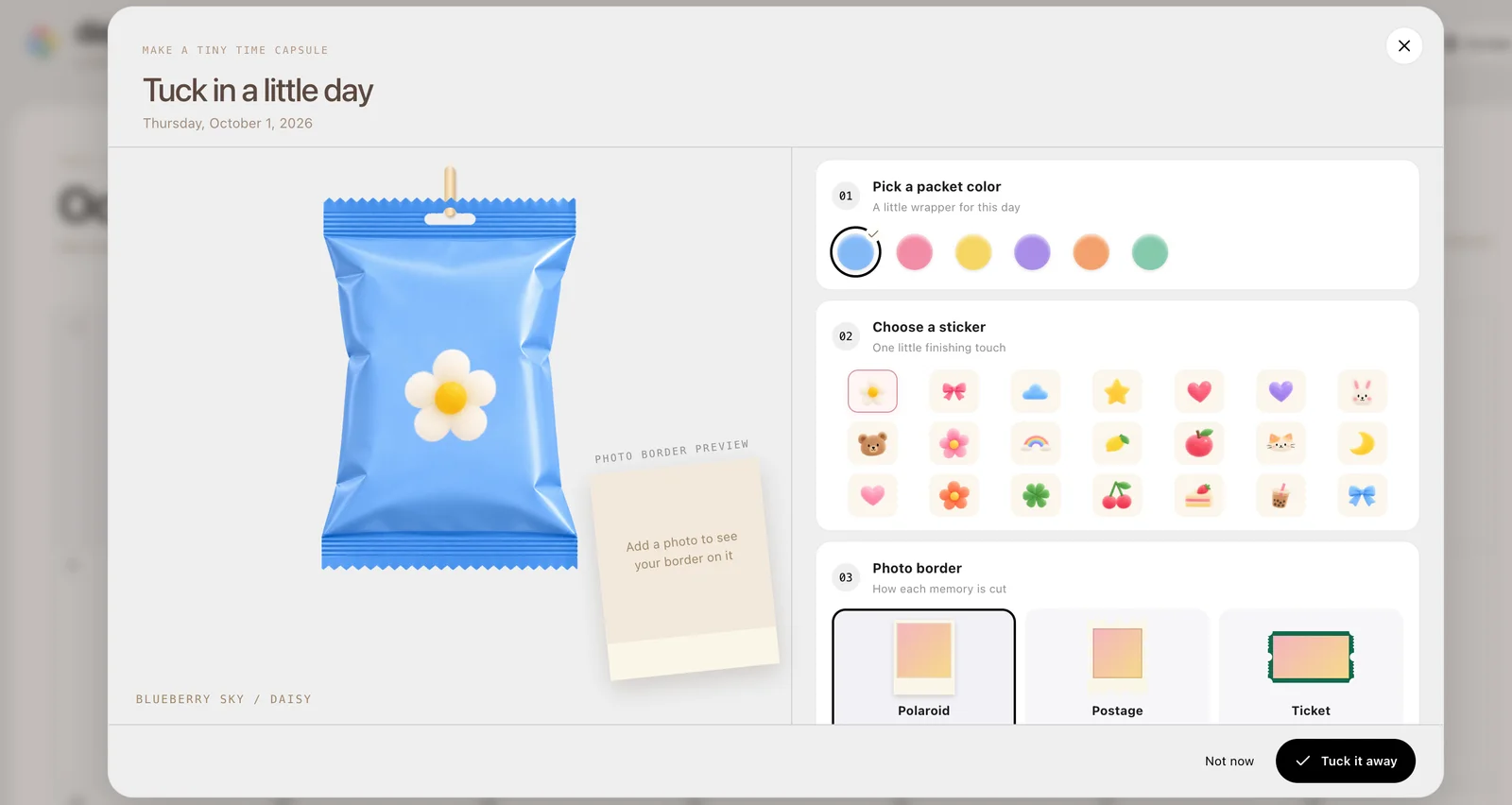
The supplied screenshot shows the editor for October 1, 2026, with the Blueberry sky packet and Daisy sticker selected. The right-hand controls show packet colors, a sticker library, and the Polaroid, Postage, and Ticket border choices. The bottom action is Tuck it away.
It is an editor view rather than a completed photo collection: the photo preview is still prompting for an image. The date belongs to that captured screen, not to the date of this guide. During our October 15 check, the live editor exposed the same core choices and additional sticker rows below the visible portion of the screenshot.
The packet preview and the photo-border preview have separate jobs. A colorful wrapper can be ready before any image has been imported, so use the photo thumbnail and imported-photo count to confirm that an image was actually selected.
The monthly calendar is the main index. An empty date offers an Add a memory button; a saved date becomes a packet-opening control with its photo count. The page also displays a count of tucked-away days. In our one-photo test, the count became one after saving, and the calendar continued to show the entry after a browser refresh.
Opening that date revealed a memory viewer with Previous day, Next day, Edit this packet, Open a little, Reset pocket, and a Pull control. The viewer gives instructions for denting or tearing the foil wrapper. This packet interaction is part of the presentation; it should not be confused with downloading an archive or decrypting a protected file.
The visible keyboard instructions say the lower torn foil piece can be moved with arrow keys and returned with Home. We inspected the controls and activated Open a little, but did not perform a full keyboard or assistive-technology accessibility audit.
The file picker advertises JPG, PNG, HEIC and more, and says you can choose as many photos as you like. These are interface statements, not a measured compatibility matrix or an unlimited-storage guarantee. Our test used one generated PNG image; HEIC decoding, large batches, and large individual files were not tested.
After selecting that PNG, we saw a photo thumbnail, its filename, a count of one, and the option to add more photos. This confirms a successful import into the editor for that test file. It does not establish that the app preserves the original resolution, metadata, color profile, or file encoding.
For a first real entry, choose one ordinary image whose appearance you know. Check that the subject remains visible inside the selected border before adding a whole set. Keep the original image outside Day Pocket so a browser issue cannot leave you with only the diary copy.
The tested photo-memory flow was free to access on October 15, 2026. We opened the calendar, imported a generated image, saved a packet, refreshed, and reopened the saved day without a sign-in screen, checkout, subscription prompt, or payment request. NavSprout therefore labels the currently observed basic flow Free.
No paid plan was advertised in the inspected calendar, editor, or memory viewer. This is evidence about the current flow, not a promise of permanent hosting, unlimited storage, or future pricing. We did not find a separately verified pricing document or infer a connection to the prices of similarly named mobile apps.
The interface says the app is for you on this device, and the photo picker describes images as saved only on this device. The save confirmation used the same device-oriented wording. Our saved packet survived a refresh in the same browser, which supports a limited persistence observation.
That observation does not establish cross-device synchronization, a cloud backup, encryption, guaranteed retention, or exactly which browser storage mechanism is used. We have not audited network requests, server behavior, analytics, or deletion. Device-oriented interface text should not be stretched into a claim that no information ever leaves the device.
Before relying on the app for important memories, keep original photos and use the same browser profile to revisit your entries. Clearing site data, using a temporary browsing session, changing browser profiles, or device loss may affect access to browser-stored content. A refresh test alone cannot verify recovery in those situations.
A single ordinary detail often makes a useful first packet: a coffee with a friend, a flower on a walk, a home-cooked meal, a pet’s expression, or the view from a trip. Select the date the moment belongs to and choose a small set of photos that tell that day’s story. These are suggested uses, not templates or automatic features offered by the app.
You can also make the colors meaningful for yourself, such as one color for outings and another for quiet days. That is a personal convention rather than a built-in category system; Day Pocket did not show category filtering in the inspected interface.
For this style of diary, regular small entries are easier to revisit than importing an entire photo library at once. The app’s value is the connection between a date, a visual wrapper, and a few memorable images. Treat it as a curated collection alongside your originals.
Choose the tool around what you want to keep or send. Day Pocket starts with a date and returns you to a calendar. Retro Booth starts with a photo composition. Mixtape for You starts with a cassette design and song links. Their different starting points make them useful for different small creative tasks.
| Your goal | A relevant starting point | What to check |
|---|---|---|
| Keep pictures connected to a day | Day Pocket | Same-device persistence and keeping originals. |
| Compose a decorative photo sheet | Retro Booth | Preview, download behavior, and output dimensions. |
| Make a music gift with a link | Mixtape for You | YouTube availability and the recipient view. |
Preserve your photos and note what happened before repeatedly refreshing or resetting. A failed file import is different from a missing calendar entry, and both differ from the entire site being unavailable. The last successful step helps explain what to try next.
| Problem | Check first | Useful next step |
|---|---|---|
| The site does not open | Whether the exact Replit address is reachable | Retry later if the host is unavailable; this directory cannot restore it. |
| A photo does not appear | Thumbnail, filename, photo count, and browser messages | Try a small JPG or PNG copy; HEIC was advertised but not tested. |
| A packet appears on the wrong date | The selected date in the editor | Inspect the date before saving, including adjacent-month calendar cells. |
| A saved day seems missing | Selected month and browser profile | Return to the original month and browser; avoid clearing site data as a first step. |
| Changes were not kept | Whether Tuck it away completed | Reopen the date and inspect the saved result. |
| You need another device or a backup | Whether the app now offers an explicit export or sync feature | Keep originals separately; neither feature was verified in our check. |
We inspected the live calendar, creator credit, editor, photo-selection controls, and packet viewer. A generated PNG was imported and saved to October 15, 2026; the tucked-away count changed to one, the packet reopened, and the entry remained after refreshing the same browser. No registration or payment was required in that flow.
We did not verify cloud sync, backup/export, editing across devices, offline availability, long-term retention, HEIC compatibility, large-batch limits, mobile performance, or a complete privacy/security audit. We also did not find reliable independent documentation that justified expanding those claims. The user-supplied screenshot and original-host artwork are identified separately from our live observations.
It is the photo-memory website at daypocket.replit.app, branded day pocket. It organizes photos by date in decorative packets on a monthly calendar.
https://daypocket.replit.app/ is the entry covered here. Other DayPocket budget and tool apps found in search are not the memory-calendar product described on this page.
The live website credits the concept to Reverelia and links to @reverelia on Instagram. Replit is present in the hosting address.
The basic flow we tested on October 15, 2026 required no payment or sign-in: importing a PNG, saving a packet, refreshing, and reopening it. No paid plan appeared in those screens.
Select a calendar day, choose a packet color, sticker, and border, import photos, and select Tuck it away. Reopen that date to check the result.
The inspected editor lists Blueberry sky, Strawberry milk, Lemon drop, Grape fizz, Peach pop, and Mint puff.
The editor offers Polaroid, Postage, and Ticket, with preset border colors and a Custom color control.
The editor invites multiple photos and shows an Add more photos control. Our test used one PNG; batch capacity and storage limits were not measured.
The picker advertises JPG, PNG, HEIC and more. NavSprout verified one PNG import, but did not test HEIC decoding.
The interface says saved only on this device. Our packet survived a refresh in the same browser. We did not independently audit storage, network handling, or retention.
Neither cross-device sync nor backup/export was verified in the inspected interface. Keep original photos separately.
This guide covers the Replit-hosted photo-memory calendar, not the similarly named budget or everyday-tool apps.
Written by NavSprout Editorial. Published and checked . We use primary project pages and distinguish interface observations from features we have not tested. External websites can change after this check.
Independent editorial coverage. NavSprout is not the developer of the apps described here.
Report a correction →Different roles in the same workflow. Follow the reason, then compare.
Explore a template-based retro photo booth with Take Photo and Upload modes.
Choose Retro Booth when you want to compose a photo sheet rather than organize memories by date.
Design a cassette-style digital mixtape using YouTube song links.
Choose a cassette-style music gift when the memory is best expressed through songs and a share link.