ilovestitching Vercel App
Create stitched lettering and motifs in Stitch Typewriter, a browser embroidery-style editor with cloth settings and image export.
Why it’s here
Stitch Typewriter turns a short writing task into a visible stitching process. Its cloth, thread, font, motif, and export controls give the workspace more range than a fixed text-effect preview. We verified a simple English message and heart motif all the way to a downloaded PNG.
Who it fits
People making decorative messages, digital keepsakes, and embroidery-style visual experiments.
A task to try: Make and export a short stitched greeting
- Open ilovestitching.vercel.app and use Settings → Table · Sound · Language to select English if needed.
- Type a short greeting, inspect Font and Thread, and add a motif such as Heart.
- Let the stitching finish, then use Save → Transparent PNG and open the downloaded image to check the result.
Where to be careful
DST, GIF, video, photo/SVG insertion, hand drawing, and long-term history recovery were not tested. A visible DST option does not establish compatibility with your embroidery machine or a production-ready stitch file.
ilovestitching Vercel app: Stitch Typewriter features and export guide
The ilovestitching Vercel app, called Stitch Typewriter in English, lets you build a fabric-style composition with typed lettering and stitched motifs. Our guide follows a real greeting from text entry to a downloaded PNG, with screenshots of fonts, motifs, cloth settings, and export choices.
Checked October 15, 2026. We switched the original editor to English, typed a non-personal greeting, selected Heart, inspected the main panels, downloaded Transparent PNG, and opened the returned file. No registration or payment appeared. Photo/SVG conversion, Draw/Scissors, DST, GIF/video, machine compatibility, history retention, and mobile performance were not tested.
What is the ilovestitching Vercel app?
The ilovestitching Vercel app is the website at ilovestitching.vercel.app. Its English interface is called Stitch Typewriter; the Chinese title is 文字刺绣小工具, meaning a small text-embroidery tool. You type into a fabric-like workspace and watch lettering appear as stitched marks, with a moving needle and thread presentation.
The page credits hi.jessie. The vercel.app hostname identifies the web address and hosting context; it does not make Vercel the author of the tool. NavSprout provides this independent guide and does not run the editor or store the work you create there.
The workspace is useful for a short greeting, a decorative phrase, or an embroidery-style digital keepsake. It also exposes more advanced insertion and export options, but those should be evaluated individually rather than inferred from a simple successful PNG test.
How to make your first stitched message
- Open the original site. If the interface is Chinese, open 设置 (Settings), then 桌面 · 声音 · 语言 (Table · Sound · Language), and select English.
- Click or focus the writing area and type a short message. Our test used “Hello, friend!” rather than any personal information.
- Open Thread to inspect the palette. Check the visible stitching instead of assuming that the entire message will always use one color.
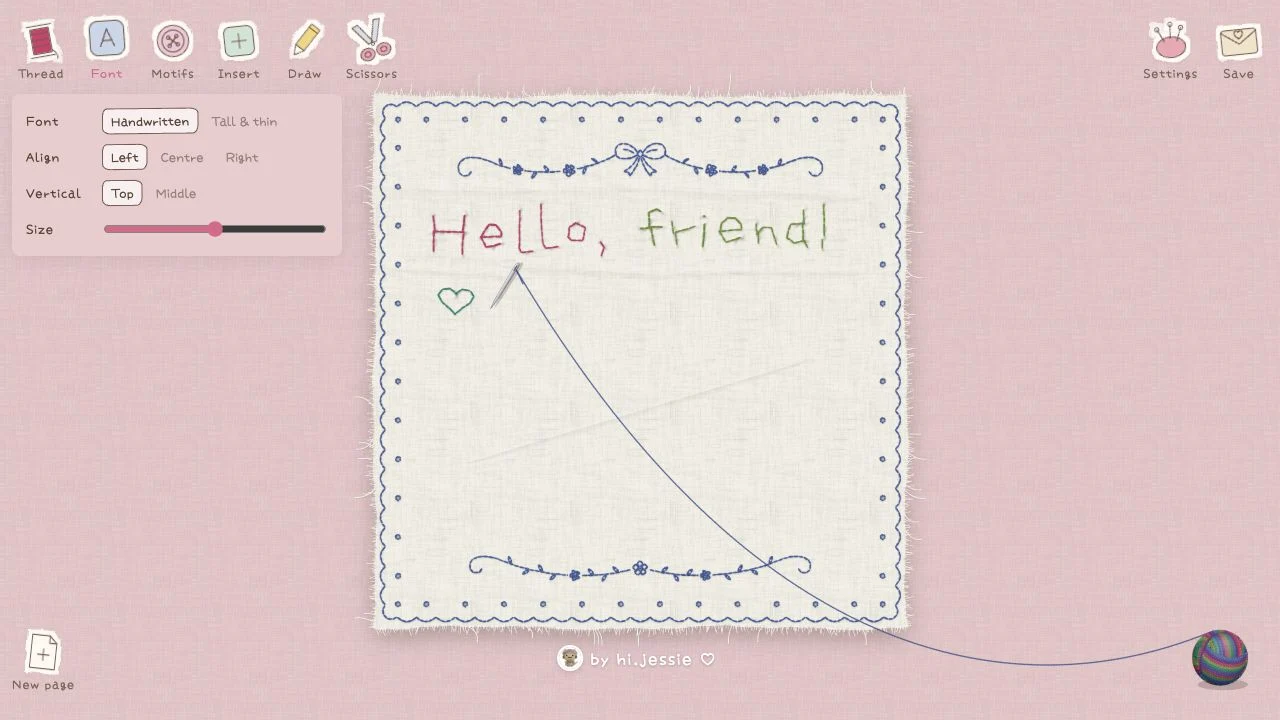
- Open Font to inspect the two font styles, alignment controls, and Size slider. Begin with a short line so changes are easy to see.
- Open Motifs and select a small decoration. We added Heart in the With text mode; the motif appeared in the exported result.
- Allow the visible stitching to catch up. The preview may still be animating even though the text field already contains the complete message.
- Open Save and choose Transparent PNG. Check the downloaded file in an image viewer before sharing or using it in another composition.
Fonts, alignment, and text size
The English Font panel lists Handwritten and Tall & thin. It also provides Left, Centre, and Right horizontal alignment, Top and Middle vertical placement, and a Size slider. The inspected size value was 60, which is a UI observation rather than a recommended size for every output.
Choose your composition before entering a long paragraph. Short lettering gives the stitches room to read as thread, while a dense message can make the effect harder to distinguish at a small display size. Check the exported image at the size you intend to send or publish.
Typing and stitching are separate moments in the flow. A full sentence can already exist in the input while only its first letters are visible on the cloth. That delay is not by itself evidence that input failed. Our final download contained the complete sample and its heart motif.
Thread colors and the animated stitching effect
Thread opens a visual palette of solid and multicolor-looking swatches. The interface combines a spool control, needle, thread path, and textured cloth. These elements make the writing process feel like an embroidery activity rather than a plain text box.
Our exported sample used different colors across the greeting and a separate heart decoration. This confirms the appearance of that result, not a catalog of every color rule or a promise that every font and motif will render identically. Try a small phrase when comparing palette choices.
For an image you plan to send, judge contrast as well as color. A pale thread can be subtle on light cloth; a strong thread color can make a short message easier to read. These are composition suggestions, not automatic contrast checks supplied by the app.
Add motifs: hearts, flowers, bows, and more
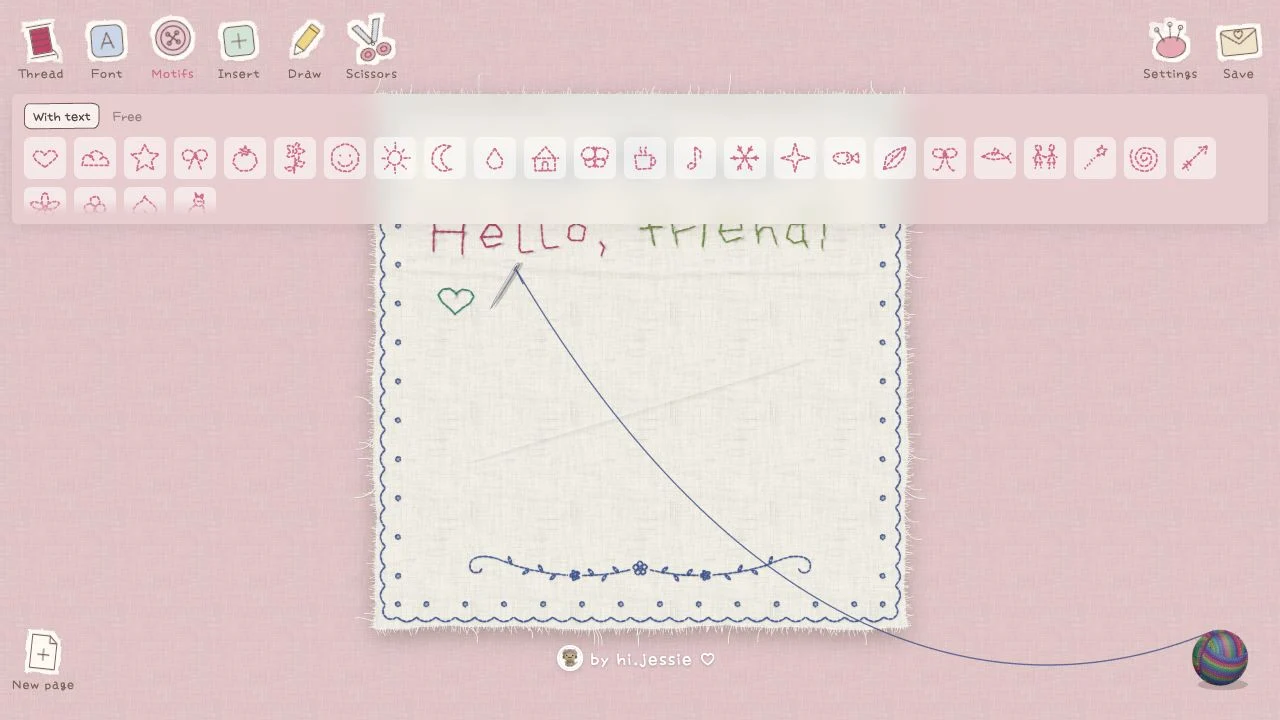
The Motifs panel has With text and Free modes. Its inspected library included Heart, Cloud, Star, Bow, Tomato, Flower, Smiley, Sun, Moon, Butterfly, Mug, Note, Snowflake, Leaf, Friends, Cat, and other named decorations. The screenshot gives a more useful overview than treating the library size as a permanent promise.
We selected Heart with the text-following mode active. The exported image showed a stitched heart beneath the greeting. Free placement was visible as an alternative, but we did not test positioning behavior or the full motif library.
Pick one motif that reinforces the message, then check spacing before adding more. A decorative element can be readable in the editor yet become tiny when the final image is shown in a chat or feed.
Cloth sizes, borders, and workspace settings
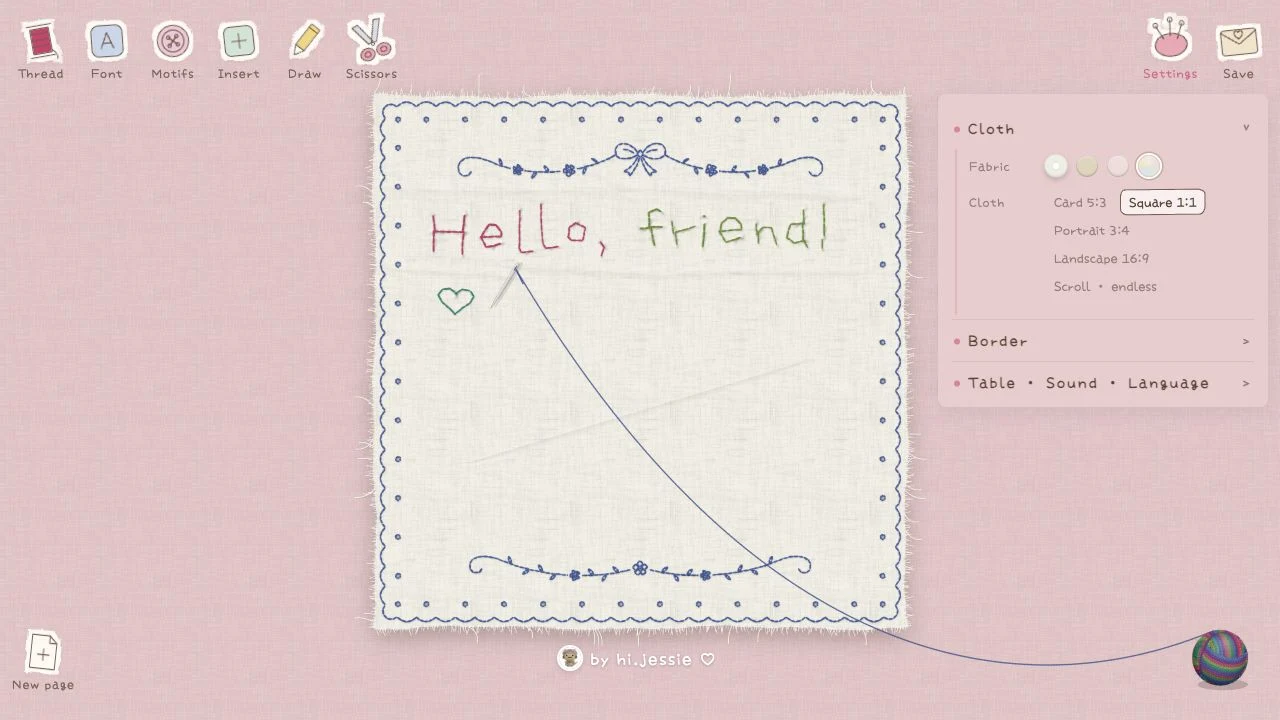
Settings separates Cloth, Border, and Table · Sound · Language. The Cloth section lists Card 5:3, Square 1:1, Portrait 3:4, Landscape 16:9, and Scroll · endless. Those labels describe composition choices; we did not measure the maximum scroll length or test every export size.
The Border section lists Bow, Vine, Hearts, Wheat, Stars & moon, Wave, Blanket stitch, and None, together with border-color controls. The sample uses a decorative blue border around the fabric. Choose a border for the whole composition rather than assuming it is part of the text itself.
The workspace also offers table styling, Sound On/Off, and Chinese/English language choices. We verified that choosing English changed the labels and browser title. Audio playback, every table theme, and persistence of those preferences were not audited.
What do Insert, Draw, and Scissors offer?
The Insert panel displays Text, Photo, and SVG choices, with a text-entry area and Stitch it and Clear buttons in the inspected text mode. This is distinct from the direct typing workflow we tested. The presence of Photo or SVG does not establish support for every image, SVG feature, or conversion style.
Draw and Scissors appear as separate toolbar tools, and New page appears at the bottom left. Their labels make the workspace broader than a preset screenshot generator, but we did not test hand drawing, cutting, or starting over. Preserve a result you want to keep before experimenting with a tool whose effect you have not checked.
For the simplest first attempt, direct typing plus one built-in motif is enough. Once that flow exports as expected, investigate insertion or drawing with a non-sensitive sample rather than importing a large or important design immediately.
PNG, JPG, DST, video, and GIF: what can you save?
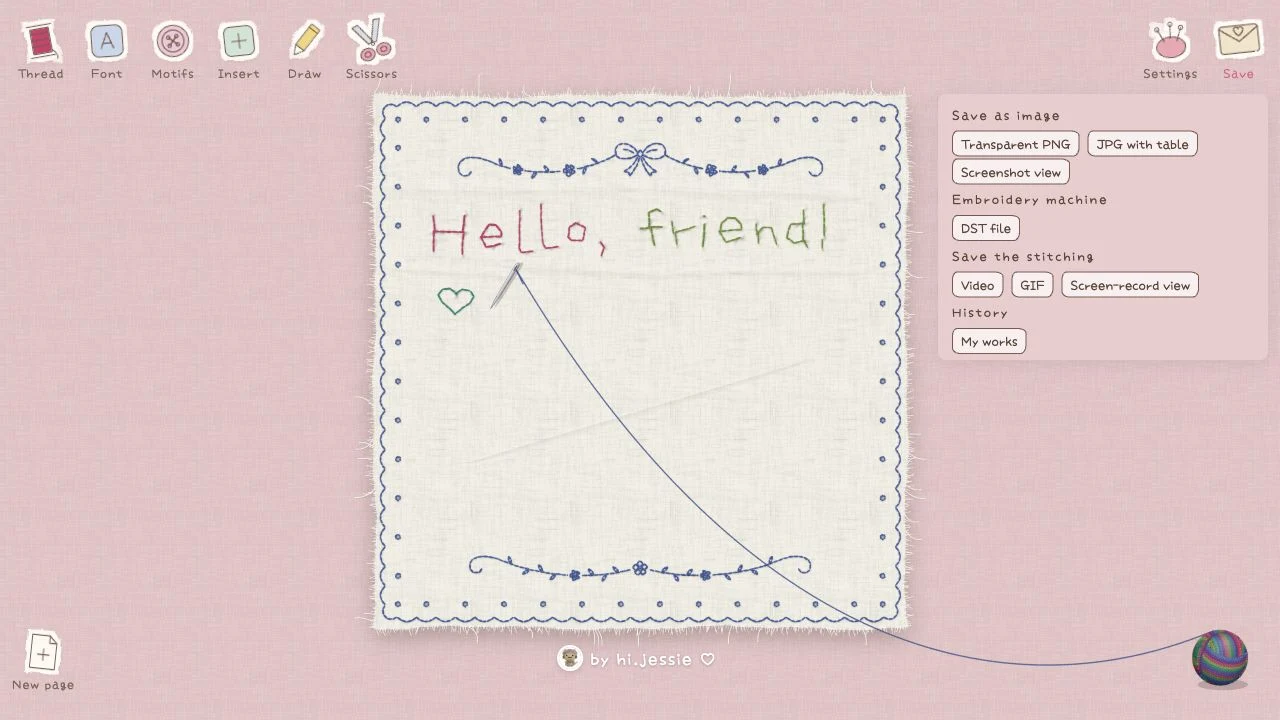
The Save menu groups several kinds of output. Under Save as image, it shows Transparent PNG, JPG with table, and Screenshot view. Embroidery machine contains DST file. Save the stitching lists Video, GIF, and Screen-record view. History contains My works.
These options have different purposes. An exported image records the visible composition; an animated format is intended to show stitching over time; a machine-oriented file needs a separate compatibility assessment. A menu label alone cannot establish successful encoding, output dimensions, or machine behavior.
| Menu option | Observed purpose or label | Verification in this guide |
|---|---|---|
| Transparent PNG | Image export with transparency | Downloaded and opened successfully. |
| JPG with table | Image export including the workspace table | Visible; not downloaded. |
| Screenshot view | Alternative capture view | Visible; not tested. |
| DST file | Embroidery-machine export option | Visible; file contents and machine compatibility not tested. |
| Video / GIF | Animated stitching export choices | Visible; not exported. |
| Screen-record view | Recording-oriented view | Visible; not tested. |
| My works | History entry | Visible; retention and recovery not tested. |
Our tested result: a downloaded stitched greeting
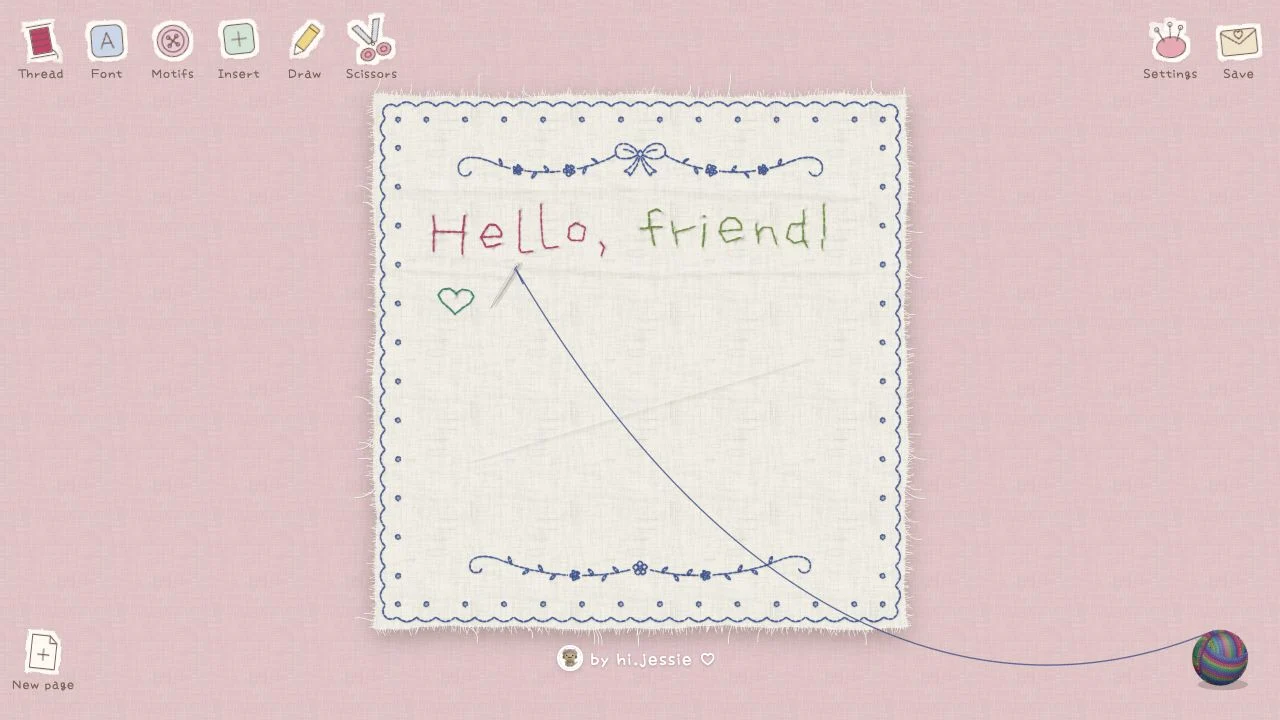
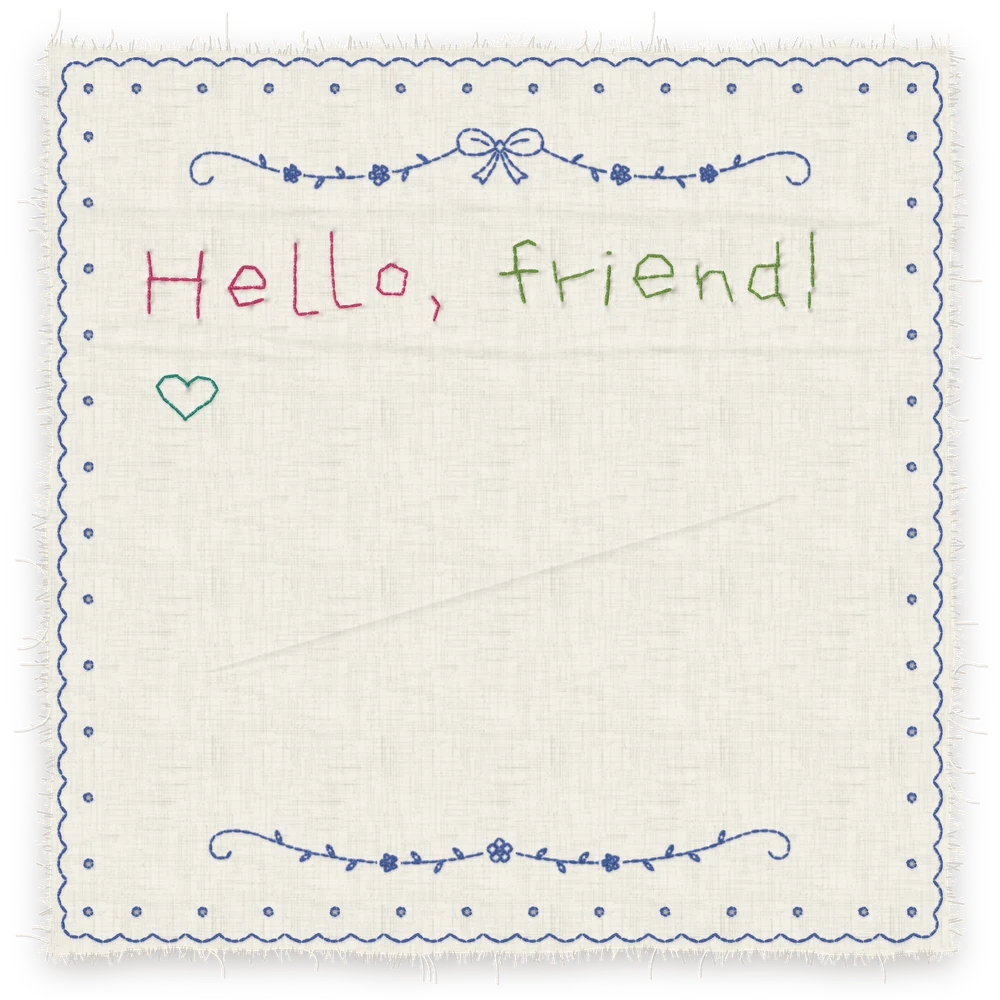
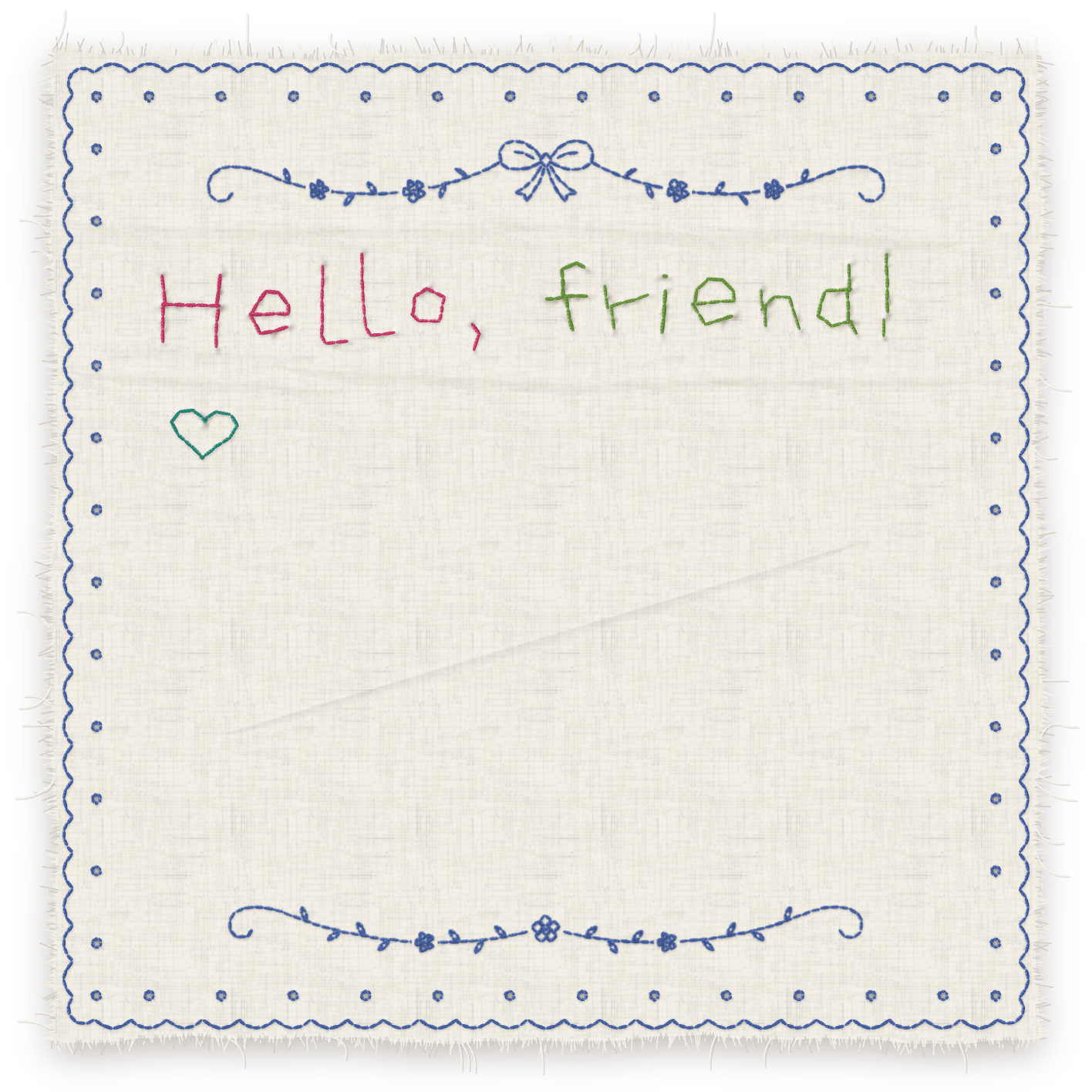
We typed “Hello, friend!”, selected a Heart motif, and chose Save → Transparent PNG. The browser returned a PNG download, and the app displayed a saved-to-Downloads confirmation. We then opened the actual file and verified that the greeting, stitched heart, fabric, and blue decorative border were visible.
The image below is the result from that download, converted to WebP for this article. The original PNG is retained separately. In this sample, the outer area is transparent while the cloth remains visible; “Transparent PNG” should therefore not be read as a promise that this option removes the fabric from every composition.
This completed export is the basis for our basic-flow verification. It does not establish that all export formats, imported photos, vector files, machine files, or mobile browsers work the same way.
Is ilovestitching free? Do you need an account?
The inspected workflow required neither registration nor payment. We opened the editor, switched to English, typed a greeting, added a motif, inspected the controls, and downloaded a PNG without a checkout or subscription prompt. NavSprout lists this currently tested flow as Free.
No priced plan appeared in the screens we inspected. That does not promise permanent pricing or verify every export option. In particular, the visible video, GIF, and DST buttons were not exercised, so their complete behavior remains outside this test.
Practical uses for the stitching editor
A short thank-you, birthday greeting, friendship note, or simple name-and-motif composition is a useful starting project. The stitched appearance and cloth border give the message a designed setting without requiring you to build a layout from scratch. These are suggested uses rather than named templates in the app.
Choose an aspect ratio around where the result will be viewed. A square is useful to evaluate for a compact post, a landscape composition for a wider message, and a portrait layout for a taller keepsake. Check the actual exported dimensions before a print or publishing workflow with fixed specifications.
If your goal is physical embroidery, evaluate the DST file separately in the software and workflow you normally use. This article verifies a visual PNG output; it does not certify stitch density, thread changes, hoop dimensions, or production readiness.
Why is the stitching tool not responding as expected?
First separate text input, animation, layout, and export. The input can contain a whole phrase while the canvas is still stitching. A completed-looking canvas and a downloaded file are also separate stages; always open the file you actually received.
If keyboard input goes to a field in an open panel, return focus to the main writing area before trying to add text to the composition. If labels are Chinese, use the language setting rather than assuming you opened a different product.
For a failed download, check whether the browser reported an error or whether the file is in Downloads. Try a short sample before a large composition. Save a result before using New page or clearing site data; local history restoration, cross-device sync, and long-term storage were not verified.
Common questions
What is the ilovestitching Vercel app?
It is Stitch Typewriter at ilovestitching.vercel.app, a browser tool for stitched-looking text, motifs, and fabric compositions.
Who is credited on the site?
The visible editor credits hi.jessie. NavSprout is an independent directory, and Vercel hosting does not identify Vercel as the creator.
Is ilovestitching free?
Our tested text, heart-motif, and PNG-download flow required no account or payment on October 15, 2026. Other export options were not completed.
How do I switch to English?
Open 设置 (Settings), then 桌面 · 声音 · 语言 (Table · Sound · Language), and select English.
Which fonts are available?
The English Font panel shows Handwritten and Tall & thin, plus horizontal alignment, vertical placement, and a Size slider.
Can I add hearts or flowers?
The Motifs library includes Heart, Flower, Bow, and many other decorations. We verified Heart in the With text mode.
What canvas sizes does it offer?
The Cloth menu lists Card 5:3, Square 1:1, Portrait 3:4, Landscape 16:9, and Scroll · endless. We did not test maximum scroll length.
Can I download a PNG?
Yes. We used Save → Transparent PNG, received a file, and opened it to verify the sample greeting, heart, cloth, and border.
Does Transparent PNG remove the cloth?
Not in our sample: the cloth remained visible, with transparency outside the fabric. Do not assume it isolates only the lettering.
Does it export DST embroidery files?
A DST file option is visible under Embroidery machine. Its contents, compatibility, and production readiness were not verified.
Can it export GIFs or videos?
Video, GIF, and Screen-record view are visible in Save. We did not complete those output paths.
Does it save my work between visits?
The Save menu contains My works, but history retention, recovery after clearing browser data, and cross-device synchronization were not tested.
Sources & editorial method
Written by NavSprout Editorial. Published and checked . We use primary project pages and distinguish interface observations from features we have not tested. External websites can change after this check.
Independent editorial coverage. NavSprout is not the developer of the apps described here.
Report a correction →