The dualshock tools github io search leads to DualShock Calibration GUI, a browser utility for compatible PlayStation controllers. NavSprout selects it for a practical decision: work out whether you need input inspection, calibration after a joystick replacement, or a hardware repair. This guide starts with that decision and the setup you need before changing anything on a controller.
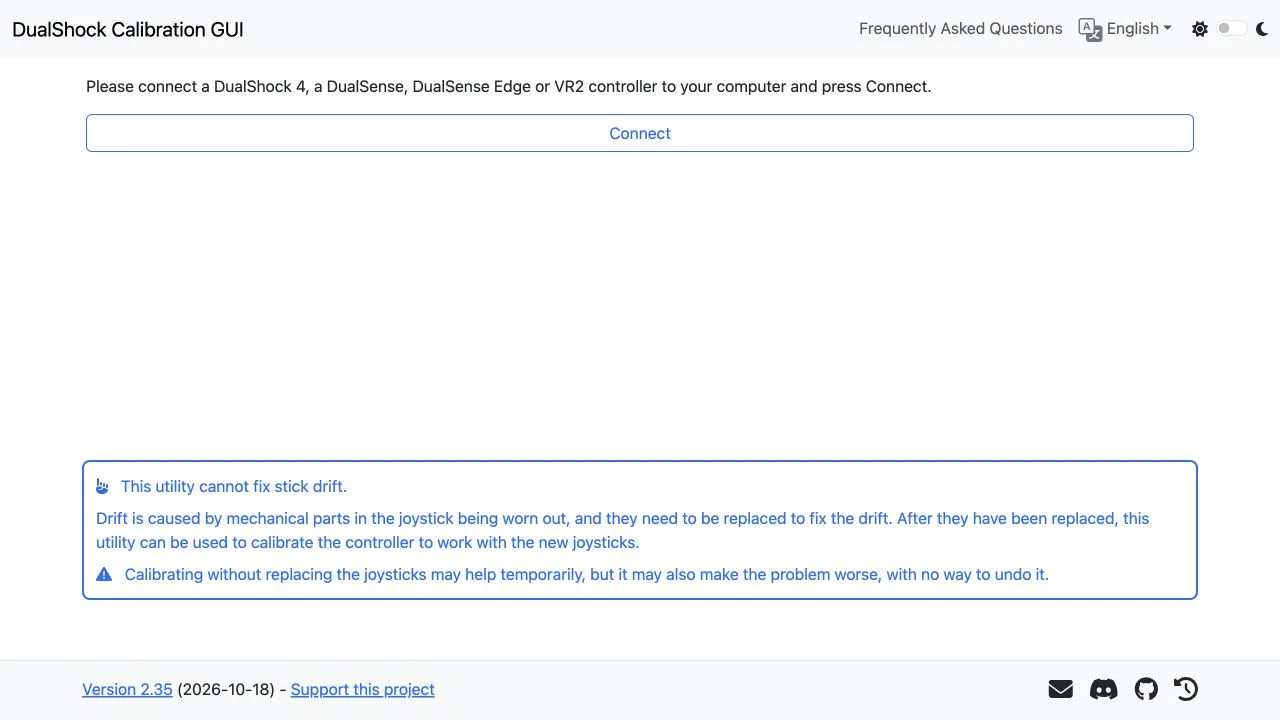
DualShock Tools screenshots: the connection screen
Why it’s here
A controller that behaves strangely can send you searching for a quick fix. DualShock Tools gives you a concrete place to inspect input and investigate calibration, but its own opening message sets an essential limit: software calibration cannot replace worn mechanical joystick parts. Use the tool with a specific goal, rather than assuming every unwanted movement has the same cause.
Browser and controller requirements for DualShock Tools
Use a PC or Mac and a browser that supports WebHID, such as desktop Chrome or Edge. The application says phones and tablets are unsupported. Its connection prompt names DualShock 4, DualSense, DualSense Edge and VR2 controllers; the repository introduction explicitly lists the first three. Model-specific availability still needs checking after connection. A matching brand name alone does not prove that a clone or every hardware revision will work.
What DualShock Tools can calibrate
DualShock Tools includes stick-center calibration, stick-range calibration and fine-tuning. Center controls concern the resting position; range controls concern the movement envelope. Input visualization and calibration serve different tasks: first understand the behavior you are trying to change. No physical controller was connected for this review, so we cannot show a measured before-and-after result.
Try temporary changes before saving
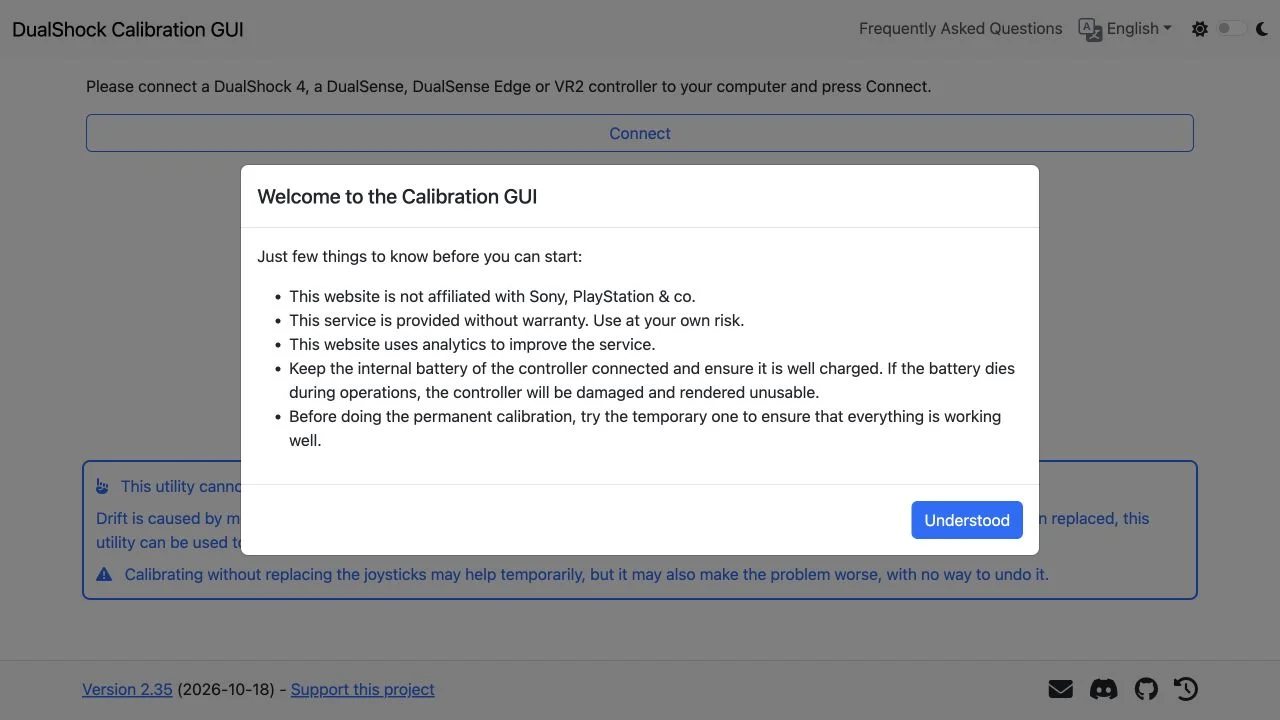
The DualShock Tools welcome notice recommends checking temporary calibration before making it permanent. It also tells users to keep the internal battery connected and well charged, because power loss during operations can damage the controller. Treat permanent saving as a separate decision after checking the result. An on-screen Restore calibration label is not a promise that every earlier operation can be undone.
When a repair is the next step
If joystick components are worn, the project points to replacement followed by calibration. It warns that calibrating worn parts may only help briefly or may worsen the behavior without an undo path. That makes this a useful post-repair utility to evaluate, rather than a universal drift cure. If you cannot identify the controller or the intended procedure, stop at reading the documentation.
A useful first session has a clear outcome
You can learn the browser requirements and read the opening warnings without connecting anything. A later hardware session should have one explicit question, such as whether a newly replaced stick needs its center checked. Keep input observations distinct from any write operation. The project is publicly accessible and its repository is MIT licensed; no account or payment was needed to inspect the page.
Before your first controller session
- Open the original dualshock-tools.github.io address and read the welcome notice.
- Check your controller model and use a desktop browser with WebHID support.
- Keep the controller battery connected and charged as the project requires.
- For a hardware session, follow the current model-specific instructions and inspect input before deciding to calibrate.
- Evaluate temporary calibration before considering a permanent save; do not treat worn hardware as a software problem.
Who it suits
Controller owners preparing a focused input check and people investigating calibration after a joystick replacement.
What our check establishes
We checked the public English interface, welcome notice, delivered page and project README on October 20, 2026. No controller was connected; input accuracy, calibration, battery readings and permanent saving were not tested.
DualShock Tools GitHub IO FAQ
What is DualShock Tools GitHub IO?
It is the GitHub Pages address of DualShock Calibration GUI, a browser-based project for input inspection and calibration of compatible PlayStation controllers.
Which controllers does DualShock Tools support?
The README lists DualShock 4, DualSense and DualSense Edge. The live connection prompt also lists VR2. We did not test a physical model, clones or individual revisions.
Which browser should I use?
The live instructions recommend a desktop browser with WebHID support, such as Chrome or Edge on PC or Mac. They also mention Firefox with an extension; that path was not tested.
Does it work on a phone or tablet?
The live application explicitly says phones and tablets are unsupported. Use the desktop setup described by the project.
Can DualShock Tools fix stick drift?
The project attributes wear-related drift to mechanical joystick parts and explains that replacement may be needed before calibration. Calibration alone can be temporary or make the behavior worse.
What should I know before a permanent save?
The welcome notice says to keep the internal battery connected and well charged, and to check temporary calibration first. Power loss during operations can damage the controller.
Is DualShock Tools free and open source?
The public site required no account or payment to inspect. Its linked source repository uses an MIT license. Hardware operation was not tested in this review.
Is this an official Sony tool?
No. The welcome notice states that the project is independent of Sony and PlayStation.
What does the review actually verify?
We loaded the English public interface, captured its connection screen and welcome notice, and inspected the README and delivered page. No controller was connected or calibrated.
Sources and review scope
DualShock Calibration GUI — original application ↗ · Project repository and README ↗
We checked the public English interface, welcome notice, delivered page and project README on October 20, 2026. No controller was connected; input accuracy, calibration, battery readings and permanent saving were not tested. Screenshots are original browser captures and the icon is the unchanged favicon served by the application. This independent guide is not affiliated with the project or Sony.